We’ve updated our Subprocessor List, effective October 6, 2026. Please review the update to our Data Processing Addendum

Control internet access with BrowseControl

BrowseControl’s is an easy-to-use internet access control software for businesses.

Block access to the internet on an employee’s or student’s computer in just a few clicks.

  • Improve Productivity & Security
    Block distracting and high-risk websites/applications
  • Web Content Category Filtering
    Block millions of sites in just a few clicks
  • Protection On Any Network
    Policies travel with devices, ensuring security off-network

*No credit card required · 14-day free trial · Easy setup

BrowseControl-Internet-Off
700+ organizations trust CurrentWare's employee monitoring software for visibility & control
  • cushing
  • Mendota
  • nebf
  • idaho
  • viking
  • VES
  • Bristol-logo

Ways to Restrict Access to the Internet With BrowseControl

With BrowseControl, controlling internet access is as easy as a few clicks.

Website access permissions can be customized for your network based on the user or machine used to access the website, giving you a flexible solution for blocking websites across your business network.

BrowseControl can provide an extension of your organization’s onsite internet usage policies to laptops and computers running outside the corporate network, giving you the option to block websites and enforce internet use policies for remote workers.

BrowseControl-Internet-Off

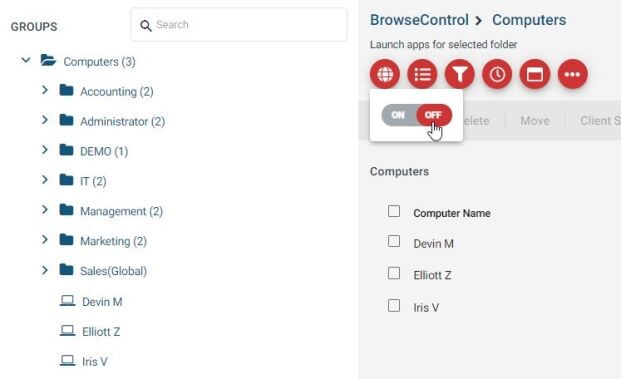
Internet On/Off Toggle—One Click to Turn Off the Internet

With the internet on/off toggle switch you can completely block access the internet for groups of connected devices in just a few clicks.


  • Select the group of users/computers you’d like to restrict
  • Click the Internet On/Off toggle switch
  • Set “Internet” to “Off”
  • That group can now no longer access the internet outside of the websites in your Allowed List
BC-URL-Blocked-List
BC-URL-Blocked-List

URL Filtering—Block or Allow Specific Sites Based on URL, IP, and URL Keyword

  • Select the group of computer(s) or user(s) that you want to block from using a specific website
  • Go to “URL Filter”
  • Add the domain URL (www.NameOfWebsiteToBlock.com) or IP addresses of the specific website you want to block for the chosen computer(s) and/or user(s). You can block as many sites as you want.
  • Click “Apply to Clients” to save the blocked sites
BrowseControl-Category-Filtering-Mockup

Category Filtering—One Click to Block Thousands of Websites

Restrict access to websites based on content categories with BrowseControl’s category filtering feature.
More than 10,000 new domains are added each day, making it simple to block websites even as new sites emerge. Easily block distracting sites such as social media or inappropriate websites such as pornography.


  • Select the computer(s) or user(s) that you want to block from using a specific website
  • Set “Internet” to “On” if it is not already on
  • Go to “Category Filtering”
  • Use the search bar to find the categories you want to block (e.g. “Social Media”) and add them to the Blocked Category List
cwConsole-url-filter

Allowed List (Whitelist)—Allow Only Authorized Websites

With the Allowed List you can allow access to only certain sites or allow websites that would otherwise be blocked based on their content category.


For example, you could use Category Filtering to block websites in the Social Media category while still allowing access to LinkedIn.


  • Select the computer(s) or user(s) that you would like to customize access restrictions for
  • Set “Internet” to “Off”
  • Go to “URL Filter”
  • Add the URLs, domain, or IP addresses of the allowed websites to the Allowed List
BrowseControl-Internet-Scheduler-2-768×390

Limit Screen Time With Time-Based Settings

  • Internet Scheduler: Create flexible internet restrictions based on set schedules. Configure unique internet access restrictions based on time, day of the week, or month.
  • Internet Quota Limit: Turn off internet access after the internet has been used for a total accumulated time period.
  • Internet Usage Timer: Toggle the internet on or off after a specified period of time. The timer can be set for a whole group or an individual client.
Internet Use Policy Template

FREE DOWNLOAD

Internet Use Policy Template

Download this FREE internet use policy to set standards for acceptable internet usage in your organization.


  • Disclose the organization’s intent to monitor internet use
  • Communicate acceptable standards for technology use
  • Describe your users’ rights and responsibilities

Why Use Internet Access Control Software?

Blocking websites with BrowseControl internet access control software gives you full control over internet usage in your organization.

Enforce Acceptable Computer Use Policies

  • Policy Reminders: Redirect users from restricted websites to your internet use policy or a custom block page
  • Block Websites: Prevent access to websites that go against your acceptable computer use policies
  • Non-Compliance Alerts: Combine BrowseControl with BrowseReporter internet use monitoring software to get alerts of policy violations
Internet Use Policy Template

Block Bandwidth Hogs to Improve Network Availability

  • Block Bandwidth Hogs: Block Netflix, Amazon Prime Video, and other unproductive bandwidth hogs
  • Restrict Unproductive Sites: Reduce unproductive web browsing to ensure bandwidth availability for work tasks
  • Discretionary Access: Selectively allow access to high-bandwidth sites on an as-needed basis
internet-bandwidth-monitoring

Reduce Distractions to Improve Employee Productivity

  • Improve Focus: Block distracting websites and apps to keep your users focused on their tasks
  • Custom Internet Policies: Apply different policies for group of users or computers to avoid bottlenecks
  • Control Tech Use: Combine with BrowseReporter cmputer monitoring software for advanced awareness and control over technology usage
productive-in-the-workplace-distraction

Protect Your Business From Compliance & Liability Risks

  • Prevent Software Piracy: Use the app blocker to prevent employees from launching specific applications
  • Block Inappropriate Content: Prevent users from accessing pornographic, hateful, or crude websites at work or school
  • Meet Compliance Requirements: Control internet use to secure your network against web-based threats and data loss to cloud storage sites/apps
lawyers

Protect Against Web Security Threats

  • Download Blocker: Block file downloads such as executables, zipped files, and videos from the internet
  • Internet Off: Block the entire internet from being browsed for specific computers or employees
  • Malware Protection: Block malicious and high-risk websites with our frequently updated category filtering database
internet-screen-security-protection-60504-scaled-1-768×512

Prevent Data Theft & Leakage

  • Cloud DLP: Block unsanctioned cloud storage apps and sites to prevent employee data theft
  • Port Filtering: Block ports used for FTP, SCP, SFTP, etc. to prevent data from leaving the network
  • Block High-Risk Sites: Block other potential data egress points such as personal email platforms, torrenting sites, etc
ING_33594_221007-edited-scaled
Internet Use Policy Template internet-bandwidth-monitoring productive-in-the-workplace-distraction lawyers internet-screen-security-protection-60504-scaled-1-768×512 ING_33594_221007-edited-scaled

Try BrowseControl for Free

Fully functional. Easy to use. $6 USD user/month

BrowseControl Web Filtering Features

Category Filtering

Block websites based on specific web content categories

URL Filter

Allowed list or Blocked list for specific URLs

Application Blacklisting

Block specific Windows applications from launching

Block Downloads/Uploads

Prevent uploading and downloading based on file type

Port Filter

Close unused and high-risk TCP/UDP ports

Customize Message

Display a customized warning message on blocked websites

Google Safe Search

Search engine filters prevent explicit results in search engines

Time-Based Policies

Schedule internet access and control browsing based on time

Central Web Console

Save time with a central admin console; optionally integrate Active Directory OUs or security groups

Platform Security

Protect your CurrentWare console with 2FA, passwords, privilege management, and more

Offsite Management

Extend onsite security policies to computers running outside the corporate network

SQL Server Supported

Database scaled for enterprise and large business operations using Microsoft SQL Server

Try BrowseControl for Free

Fully functional. Easy to use. $6 USD user/month

Trusted by teams across the United States, Canada & the United Kingdom

Join 100,000+ professionals across 55 countries.

currentware-comes-with-citrix-compatibility Capterra awarded CurrentWare as Best Ease of Use software 2026 CurrentWare Named a top choice by Forbes Advisor for best employee monitoring software 2025 Top Rated Employee monitoring software by SoftwareWorld CurrentWare recognized as trusted vendor of epmloyee monitoring software by Crozdesk in 2026 GetApp recognized Currentware as software with best functionality & features 2025 G2 selected CurrentWare as High Performer (Fall 2024) in employee monitoring software category GetApp recognized Currentware as employee monitoring software Category Leaders in 2024 G2 selected CurrentWare as Easiest To Do Business With (Fall 2024) in user monitoring category CurrentWare recognized by Crozdesk as a Quality Choice Solution in 2026 SoftwareAdvice rated CurrentWare as Front Runners in 2024 CurrentWare recognized by SoftwareSuggest for Best Support in 2024 CurrentWare recognized as a FinancesOnline Rising Star CurrentWare recognized by Capterra for Best Value Award in 2022 CurrentWare recognized by SoftwareSuggest for Best Support in 2024 Crozdesk recognized CurrentWare as Leader in Employee Monitoring Software 2021

What customers say about CurrentWare

4.7 / 5 63 verified reviews on Capterra
  • Ease of use 4.6
  • Customer service 4.7
  • Features 4.6
  • Value for money 4.7

90% of reviewers would recommend BrowseControl (average likelihood to recommend: 9 out of 10).

★★★★★ Capterra · Nov 2023

BC is terrific.

“BC is fast and easy to deploy on different platforms. I also love the fact that it is open source and compatible with devices. The support team is incredible and responsive. The hardware is fast with up to date robust features.”

Pauline K Human Resources Manager Information technology and services · 11-50 employees
★★★★★ Capterra · Nov 2023

Enhancing Security and Productivity with BrowseControl

“BrowseControl has been a great tool for our organisation due to the enhanced security that it provides because of which we are protected from the phishing, the online threats by blocking access to potentially harmful websites. We can prioritise business-critical applications and control the bandwidth usage, which ensures that essential tasks are not affected by excessive non-work-related web traffic. The tool is very user-friendly and the filtering rules are highly customisable which is something that I really like.”

Verified Reviewer Not Displayed Insurance · 5001-10000 employees
★★★★☆ Capterra · Aug 2023

Threat free browsing environment facilitation tool

“The cyber attack response automated system safeguards our data from malware attacks. BrowseControl provides real-time insights on security situation from workloads. It has simple configuration procedure with other applications that saves time and resources for entire implementation process.”

James R Marketing Specialist Marketing and advertising · 11-50 employees
★★★★☆ Capterra · Aug 2023

Powerful network security control application

“It prevents members in the organization from visiting vulnerable areas in the internet. Browse control tests authenticity of browsers before operations. It provides alerts when there are data threats that can affect workflows.”

Bryson H Data Engineer Financial services · 5001-10000 employees
★★★★★ Capterra · Jul 2023

Effective Web Access Management Solutions To Ensure Productive Internet Usage

“By limiting access to potentially risky or malicious websites, it can help improve network security and lower the risk of cyberattacks. Even during times of high usage, it guarantees a seamless browsing experience for all users. We can achieve a balance between online activities and other significant factors by imposing time limits on internet use.”

Sakshi C Software Developer Information technology and services · 51-200 employees
★★★★★ Capterra · Jul 2023

Total control access

“I really admire that BrowseControl limits the access of unwanted websites and apps which protects our systems from unwarranted cyber attacks.”

Rick N Area President Food and beverages · More than 10000 employees
★★★★★ Capterra · Jul 2023

Prevent From Accessing Non-Work-Related Websites And Enhance Productivity

“It includes thorough web filtering capabilities that let administrators limit and control who can access which websites based on categories, URLs, keywords, or time constraints. Administrators can use the tool to set up unique browsing guidelines for various user groups or organizational departments. It offers in-depth reports and real-time tracking of web browsing behavior.”

Akash S Senior Business Development Manager Information technology and services · 51-200 employees
★★★★☆ Capterra · Jun 2023

An effective web filtering solution!

“I recently started using BrowseControl to better manage my team's web browsing and it has been a godsend. The software is very user friendly, allowing me to easily customize internet restriction policies for each user or department with granular control. It also allows me to block websites based on URLs and categories which is great for controlling the content my team can access.”

Emma M Business Development Specialist Computer software · 1001-5000 employees
★★★★☆ Capterra · Jun 2023

A great web filtering solution!

“I recently switched to BrowseControl for our company's web filtering and I couldn't be happier. The set up process was fast and easy, the features are comprehensive, and the support team is always available to help with any issues we have. Plus, it's a great value for the money since they offer competitive packages that meet our needs.”

Evana W Sales And Marketing Associate Information technology and services · More than 10000 employees
★★★★★ Capterra · May 2023

All-Inclusive Platform To Limit Access To Dangerous Websites

“It is an all-inclusive platform for managing the organization's devices, security, and network. It can be set up to permit or prohibit Internet access at different times and devices. The detailed reports are incredibly helpful, and the setup is fairly simple. Both updating client settings and importing settings from an older client into a new client are simple processes.”

Rahul K Full Stack Developer Information technology and services · 51-200 employees
★★★★★ Capterra · May 2023

Controlled Internet Access And Help To Focus on What Matters

“It enables businesses to impose time limits on web browsing, avoiding excessive use of the internet for personal use. Businesses can optimize bandwidth usage and guarantee that key apps have enough resources by regulating web browsing. It gives businesses information about how their workers use the internet, enabling them to see and resolve any issues with abuse or compliance. Businesses might design specialized online usage guidelines based on their own requirements and demands.”

Diksha S Business Development Manager Information technology and services · 51-200 employees
★★★★★ Capterra · May 2023

Manage Network security and internet usage with BrowseControl!

“We're using BrowseControl to monitor and control internet usage of all employees real-time allowing my team to keep track of their activities, monitor bandwidth usage and alerts for any suspicious activities that happens internally.”

Emmylou P IT Manaer Telecommunications · 1001-5000 employees

Solutions That Work Across Industries

Tailored controls that help you meet industry standards, boost efficiency, and protect sensitive data across remote and in-office teams.

Healthcare

HIPAA-ready controls to protect PHI with USB management and insider-threat visibility.

Government

Cybersecurity and policy enforcement aligned to NIST 800-171 and CMMC.

Legal Services

Keep client data protected, billable hours productive, and software costs in check.

Manufacturing

Productivity monitoring and internet visibility for both the shop floor and back office.

Financial Services

Enforce access policies and protect sensitive financial data with audit-ready trails.

Schools & Libraries

CIPA-compliant web filtering to qualify for E-Rate and keep students safe online.

Small Business Employee Productivity

Track unproductive web browsing and idle time to detect time-wasting

Built to Support Your Compliance Program

Discover how organizations use CurrentWare’s employee monitoring software to improve visibility, strengthen compliance efforts, and manage employee activity more effectively.

Pick & Plug Into Your Existing Stack

CurrentWare works alongside the identity, security, and directory tools you already use, including support for SAML, OIDC, and CEF standards. Cloud connectors are on the way.

  • Tested & supported
  • Generic standards (SAML, OIDC, CEF)
  • On the roadmap (Cloud)

  • Splunk
  • Ping Indentity.
  • Onelogin Logo
  • Microsoft-Active-Directory
  • Logrhythm
  • IBM-QRadar
  • Jumpcloud
  • Elastic
  • ManageEngine
  • Microsoft Entra ID
  • Okta
  • auth0

Keep reading

Articles

View All Blogs

Frequently asked

BrowseControl Internet Access Control Software FAQ

The free trial is fully functional. You can deploy it on up to 10 devices for 14 days.

If you need more time or more devices to properly evaluate our web filtering software solution in your organization, reach out to our team.

Here at CurrentWare we pride ourselves on our customer support. During and after your evaluation our team is here to help you over a phone call, live chat, or email. We will make sure that you get the best experience possible.

Yes. BrowseReporter and BrowseControl support a variety of deployment options that allow you to monitor and restrict internet use no matter where the devices are.

To use our web filtering and internet monitoring software for your remote users, you will need to configure a few settings.

As always, our customer support team is here to assist you so you can make the most out of CurrentWare; if you need assistance you can reach out to us by phone, live chat, or email.

Remote workforce management options:

  1. Port Forwarding: By configuring inbound port forwarding settings on your network’s router you can connect the CurrentWare Client software on your remote user’s computers to the CurrentWare Server in your network.
  2. Cloud Deployment: Install the CurrentWare Server on a cloud-based virtual machine and adjust a few settings to allow traffic between the CurrentWare Server and Clients.

Learn More: Block Websites for Remote Users

If you would like to block a given web content category while selectively allowing access to specific sites, simply log in to the administrator account and add sites you would like to unblock to the URL Allow List.

With this method you can block the Social Media category while allowing access to LinkedIn.com or block the File Hosting category to prevent personal cloud storage use while still allowing access to sanctioned cloud storage providers.

The base price for BrowseControl is $5 USD per license per month.

For even more advantageous pricing on our web filtering software, we offer a variety of deals.

  • Get up to 15% off with pre-pay discounts for 3-year subscriptions
  • Get up to 10% off when you purchase the full CurrentWare Suite
  • Non-profit and education organizations can qualify for up to 10% off
  • CurrentWare’s resellers and Managed Services Providers enjoy advantageous pricing on their licenses
  • Volume discounts are available starting at 100 licenses

For more information on the best deals or to request a custom quote, please contact our sales team.

Yes. The client agent installed on the computers has the ability to block the internet even if it does not have a connection with the CurrentWare Server. Your off-site workers will continue to not be able to access blocked websites.

This offsite management capability makes BrowseControl the best web filter for remote workers; internet security policies will remain enforced even when employees are connected to their home network. As with on-premises workers you can block inappropriate websites, allow certain websites, and unblock websites.

The client agent stores and enforces BrowseControl’s internet restriction policies locally on the device. CurrentWare’s last known policies will continue to be enforced even if the computer loses internet connection or connects to a different network.

Note: If you wish to update policies or receive reports from client agents outside of the network they will need to be able to communicate with the CurrentWare Server.

Once a connection is reestablished you will receive your user’s internet usage data and any web filtering policy updates will take effect.

Learn More

To unrestrict a website that is blocked by Category Filtering, add it to the URL allow list. This will allow you to block an entire content category while selectively allowing specific websites.

For example, you can block the Social Media category while allowing access to LinkedIn.com

To unrestrict a website that is on your  Blocked Sites List, simply select the user or group you would like to modify and remove the website from the Block List.

Learn More: How Do I Control Internet Access With BrowseControl?

To stop employees from accessing certain websites you can add the websites you want to block to the Blocked Sites List.

If you would like to block a specific category of websites you can use the Category Filtering feature to block sites that belong to categories such as porn, social media, and virus-infected. This allows you to easily limit adult websites based on a pre-defined database of websites known to have adult content without needing to use URL blocking for blocking specific websites.

URL Filtering limits access to specific web pages, IPs,  and domains (websites) by comparing web addresses that end-users are attempting to visit against a database of websites that are on an Blocked or Allowed List.  This is the ideal method for blocking specific websites.

Category Filtering blocks websites based on content categories such as Porn, Social Media, and Hate sites. This allows thousands of websites to be blocked without the administrator knowing their specific URL. As new websites are identified by the category filtering provider they are sorted into their respective content categories, which can be sorted through by scrolling or with the included search bar.

BrowseControl includes three features to restrict internet access to allow users to visit websites based on time – internet quota limit, internet scheduler, and internet timer.

The Timer feature allows you to turn the internet on or off after a set time limit has elapsed. Once the timer has expired, the Internet settings will return to the previous Internet mode (ON/OFF or Schedule).

The Internet Scheduler allows you to set unique allowed websites and blocked websites lists on a set schedule. This is typically used to allow employees or students access to unproductive websites during their breaks while restricting them during work periods.

The Internet Quota feature allows the administrator account to control how long users have access to the Internet on a daily basis. This allows end-users to browse the web throughout the day until their quota is reached. This feature is ideal for internet cafes and other organizations with users that do not require ongoing access to the internet.

Learn More: Using Timer and Internet Quota to Set Internet Time Limits

Yes. BrowseControl can block websites on all modern internet browsers on the Window operating system including Google Chrome, Microsoft Edge, Microsoft Internet Explorer, Safari, Opera, and Firefox. You can find the most up-to-date system requirements here.

No. BrowseControl is designed for blocking sites for enterprise clients, schools, libraries, and other organizations.

BrowseControl is not parental control software for parents that want to enable parental controls to restrict their kid’s devices.

  • BrowseControl web filtering software starts at $6 USD per license per month. While this is advantageous pricing for the features tailored to a business environment blocking sites for their employees, it may be cost-prohibitive for parents who simply want a web filtering service for their child.
  • All of CurrentWare’s solutions are developed with businesses, schools, and similar organizations in mind. As such, our features, device settings, and development processes are not focused on managing child computer use in the way dedicated parental controls would be.

For filters more suited to blocking sites with explicit content for families, please see the Best Parental Controls Software reviews from PCMag.

You can block websites on Google Chrome by using a compatible website blocking app such as BrowseControl.

Simply add the URLs, IP addresses, or content categories of the website you would like to block on Google Chrome to the blocked sites list.

In addition to Google Chrome, BrowseControl can block websites on all the other modern internet browsers including Microsoft Edge, Safari, Opera, and more!

Which websites you should block depends on the goals of your organization.

For the best results you must ensure that the sites you block align with your organization’s goals. When you block a website you should consider the impact the blocked sites would have on your company. For example, you will want to limit adult websites to maintain a respectable work environment.

  • Improve productivity by blocking distracting websites such as Facebook.
  • Maintain a respectable environment by blocking inappropriate websites with explicit content such as pornography, hate, or crude humor.
  • Improve network security by blocking high-risk websites such as peer-to-peer (P2P) file sharing, illegal streaming sites, and as many sites that are known to be malicious.
  • Increase internet speed by blocking bandwidth hogs such as Netflix and YouTube.

Yes. Simply set the internet to “off” in BrowseControl  to completely disable access to the internet, then add the authorized intranet sites to the Allow List using their hostname or IP address.

Learn More: Block Internet & Allow Intranet with BrowseControl

BrowseControl allows you to enable the logging of blocked URLs for troubleshooting purposes.

This allows you to see what websites BrowseControl is blocking, though for optimal performance it is recommended that you disable it after you have finished troubleshooting.

In addition, you can use BrowseReporter’s URL Categories Visited report to see what URLs have been visited, what category they belong to, and whether or not the user was blocked from accessing the website.

Learn More: Find Out What Websites BrowseControl Is Blocking

To completely block internet access, simply set the internet to “Off” in your BrowseControl web filtering settings. This will allow applications to connect to the internet while preventing your users from browsing the web.

To selectively allow or block URLs or IP addresses, add them to the Allow List (whitelist) or Block List (blacklist/deny list) of the URL filter.

To block websites based on content, add the content category you would like to block from the Category Filtering list. You can exempt specific URLs within a category by adding them to the URL Allow List.

Yes. The CurrentWare Suite is supported on desktop computers, virtual machines (VMs), and servers running modern versions of the Windows operating system.

CurrentWare is a verified Citrix Ready partner; you can install the CurrentWare Clients on your Citrix Workspace running Windows.

In addition, all CurrentWare components are compatible with Remote Desktop Services (RDS) or Terminal Servers (TS).

When restricting internet access in Citrix with CurrentWare you can block websites on PC Mode to restrict the individual Windows virtual machine or on User Mode to restrict internet access for specific employees across multiple devices and/or virtual machines.

Monitoring and managing your end-users with CurrentWare in a Terminal Services environment works similarly. The exception is that in a Terminal Server/Terminal Services environment the server will be registered as an individual endpoint; to apply granular policies for each user, department, or Organizational Unit you will need to use User Mode.

Learn More:
CurrentWare for Remote Desktop & Terminal Server

CurrentWare for Citrix Activity Monitoring

CurrentWare System Requirements

BrowseControl allows you to assign unique web access policies for each Windows computer, user, or workgroup.

Simply add the specific Windows computer or user you would like to control to their own policy group, then use the Internet Scheduler, URL Filter, or Category Filter to block internet access. You can manually block websites, block site categories, and unblock websites as needed.

To change between users mode and computers mode, simply click the users tab or computers tab.

Learn More: How to Restrict Internet Access With BrowseControl

Yes. BrowseControl’s web filtering methods do not use SSL inspection, SSL stripping, or Transport Layer Security Inspection (TLSI) to block HTTPS sites; it simply reads what’s in the browser’s address bar, among other methods. This allows you to restrict internet access without the security risks and performance impacts of decrypting web traffic.

What is SSL inspection? SSL inspection is a process in which web filtering software decrypts, analyzes, and re-encrypts the content of encrypted websites to decide whether or not they should be blocked based on web filtering policies.

Try BrowseControl for Free

Fully functional. Easy to use. $6 USD user/month
Start Free Trial Book a Demo
Watch Demos