

Product Comparisons
BrowseControl: Web Filtering & Internet Restriction Software for Business
BrowseControl by CurrentWare is web filtering, internet restriction & app blocking software that gives your business
- Block unwanted websites & app categories
- Regulate file downloads & sharing
- Enable endpoint, DNS, and firewall filtering
14-day free trial · no credit card required · cloud or on-premise
700+ organizations trust CurrentWare's employee monitoring software for visibility & control
What Is Web Filtering Software Used For?
A web filtering software is used by organizations to control & regulate which websites, categories, and applications its employees can access on company devices. It checks each request against the policy you set, blocks anything that breaks the rules before the page loads, and records the attempt.
Filtering can work through the network using a proxy, firewall, or DNS, or directly on the endpoint, as BrowseControl does, so the policy stays with the device. It includes the following:
1. Endpoint filtering
An agent on each computer applies your rules locally. It works off-network, stays active when users switch Wi-Fi networks, and does not redirect traffic.
2. DNS filtering
DNS filtering blocks access during the domain lookup. It is quick to deploy and easy to manage, but users can often get around it by changing their DNS server, and it cannot block applications.
3. Proxy or firewall filtering
Proxy and firewall filtering works at the network gateway. It provides strong coverage on the corporate network, but remote users usually need a VPN or cloud proxy to stay covered.
Network Port Filtering and Blocking Unused Ports
BrowseControl can block specific TCP and UDP ports on managed computers, letting you shut down unwanted protocols and services without changing your firewall settings.
Since the rules are enforced on the endpoint, they work whether the computer is on the company network or connected through a home router.
| Block unused network ports | Shut down unwanted protocols | Port rules by group |
|---|---|---|
| Close ports that your business applications do not need. Fewer open ports means a smaller attack surface for malware and lateral movement. | Stop peer-to-peer clients, unauthorized remote access tools, and messaging protocols that try to get around your web rules through non-standard ports. | Set different port policies for departments, Active Directory groups, or individual computers using the same scheduling system as your web filtering rules. |
CurrentWare’s Web Filtering Application Works in Just Four Steps
BrowseControl installs a lightweight agent on each managed computer. It applies your website, application, and port rules in real time, whether users are on the corporate network or working remotely.
Step 1. Deploy the agent
Install the CurrentWare agent using the deployment tools you already use, then manage all your devices from one console.
Step 2: Set policies by group
Choose the categories, URLs, applications, and ports you want to block. Apply different rules to departments, Active Directory groups, OUs, or individual computers.
Step 3: Enforce on the device
The agent applies your rules locally and in real time, whether users are in the office, at home, or on public Wi-Fi.
Step 4: Review and adjust
Use BrowseReporter to see which sites and apps your team actually uses. Then fine-tune your policies so they work without over-blocking.
What You Can Block and Control
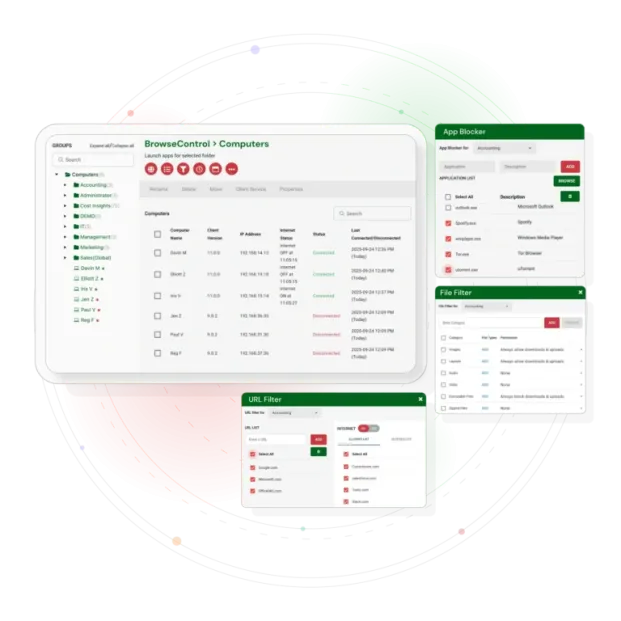
Manage web filtering, application blocking, access control, and port control from one console. All rules are enforced through the same endpoint agent.
Web and content filtering
Category filtering
Block entire categories such as social media, streaming, gambling, and adult content using a database of millions of classified sites.
Application Control
Allow only approved applications to run, so unauthorized software cannot launch on regulated endpoints.
Reclassify categories
Change the category assigned to individual sites so the database reflects your own definition of acceptable use.
Enforce SafeSearch
Force SafeSearch on Google, Bing, and YouTube so explicit results are filtered across your organization.
Internet restriction and URL filtering
Control internet access
Restrict internet access by user or group: allow full access, block the internet completely, or limit users to an approved allowlist for kiosks and high-security environments.
URL allowlist and blocklist
Filter by exact URL as well as by category. This lets you block a specific page without blocking the entire domain.
Block downloads
Stop risky file types from being downloaded to help reduce malware exposure and unauthorized data movement.
Block network ports
Restrict specific TCP and UDP ports to shut down unwanted protocols and services on managed computers.
Policy and management
Schedule internet restrictions
Set different rules for different times of day. Keep restrictions tighter during core hours and relax them during lunch or breaks with an automated schedule.
Custom block message
Show a branded block page that explains your acceptable use policy and helps reduce unnecessary help desk tickets.
Application Blocking Software for Employees
Blocking a website is not enough if the desktop application can still run. BrowseControl blocks applications by executable, so games, unauthorized remote access tools, portable browsers, and data exfiltration software can be stopped when they launch on managed computers.
Application blocklisting
Block specific executables across the organization or for individual groups. Since the rule follows the device, reinstalling an application under a different path does not get around the block.
Application allowlisting
Use the opposite approach for highly regulated environments. Allow only approved applications to run and deny everything else by default.
Portable browser control
Block portable and secondary browsers that users may install to get around filters tied to Chrome or Edge.
How to Block Apps on Windows 10 and Windows 11 Across a Fleet
Windows does not have a simple built-in way to block an application for some users while allowing it for others across many computers. Group Policy software restriction rules come close, but they are managed per machine, can be difficult to reverse, and give users little context when a block occurs.

As a workaround, BrowseControl lets you:
- Install the agent on the Windows 10 or Windows 11 computers you want to manage using your existing deployment tools.
- Open the Application Blocker in the CurrentWare console and add the executable you want to block, such as steam.exe.
- Choose who it applies to by selecting the whole organization, an Active Directory group, an OU, or a single computer.
- Set a schedule if the block should only apply during core working hours.
- Apply. The rule takes effect immediately and blocks the application when it launches, with a message explaining why.
BrowseControl supports Windows 10, Windows 11, Windows Server, and RDS session hosts, as well as virtual desktops running in Citrix, Azure, AWS, and GCP. Rules apply to each user session, so two people using the same shared machine can have different access.
Content Filtering Software for Windows Endpoints
Content filtering and web filtering describe the same control from two different angles. One focuses on what you block, while the other focuses on where you block it. BrowseControl is a Windows-native content filter that checks sites against a database of millions of domains and blocks them by category, URL, or both.
| Adult and explicit content | High-risk categories | Productivity categories | Your own classifications |
|---|---|---|---|
| Block adult categories outright and enforce SafeSearch on Google, Bing, and YouTube so explicit results do not appear. | Block malware, phishing, anonymizer, and file-sharing categories before the page loads on the endpoint. | Restrict social media, streaming, shopping, and gaming during core hours, then relax those restrictions based on your schedule. | Reclassify any site so your filtering rules match your acceptable use policy instead of relying only on a generic category. |
Web Filtering Software for Business, from 10 devices to 10,000
| Small business web filtering | Mid-market | Enterprise web filtering |
|---|---|---|
| Block distracting and risky sites and set up an acceptable use policy in an afternoon. No proxy, gateway, or dedicated security engineer is required. | Import your Active Directory structure and apply different rules to each department or OU from one console. You can also set schedules that match how each team works. | Deploy across thousands of endpoints and multiple locations, keep data on-premise when residency requirements call for it, and send activity data to Splunk, QRadar, LogRhythm, or Elastic through CEF. |
Questions to Ask Before Choosing the Best Web Filtering Software for Your Organization
Most tools sold as the best internet filtering software for business look similar on a feature list. These eight questions help you see how they differ in real-world use. Use them as an RFP checklist when comparing vendors.
1. Where is the rule enforced?
Network filtering can stop working when a laptop leaves the company network. Endpoint enforcement stays with the device wherever it goes.
2. Can it block applications, not just URLs?
Blocking a gambling website does not help much if the desktop application or a portable browser can still be used.
3. Can it block network ports?
Protocols that do not use the browser need port-level controls, not just website or category filtering.
4. How easily is it bypassed?
Before you buy, test each option against a personal VPN, a public DNS change, incognito mode, and a portable browser.
5. Where does the activity data live?
For government, healthcare, and finance organizations, check whether the vendor offers on-premise deployment or only a cloud environment.
6. How granular are the groups?
A single policy for the whole company will rarely work for long. Look for rules that can be applied to Active Directory groups and OUs.
7. What does the blocked user see?
A branded block page that explains your acceptable use policy can answer common questions before they turn into help desk tickets.
8. What is the true per-user cost?
Look beyond the list price and check which modules you actually need. Filtering alone should not cost the same as a full employee monitoring suite.
BrowseControl gives you the granularity of a proxy without the infrastructure overhead.
BrowseControl vs. Monitoring-First Tools: A Quick Comparison
BrowseControl is built to actively filter and block access. Most alternatives in this category focus on monitoring first, with enforcement added on top.
| Capability | BrowseControl | ActivTrak | Teramind | Insightful |
|---|---|---|---|---|
| Category-based web filtering | Yes | – | Yes | – |
| URL allowlist and blocklist | Yes | – | Yes | – |
| Application blocking by executable | Yes | – | Yes | – |
| Download blocking by file type | Yes | – | Yes | – |
| Network port blocking | Yes | – | – | – |
| SafeSearch enforcement | Yes | – | – | – |
| On-premise deployment | Yes | – | Yes | – |
| No proxy redirect required | Yes | – | – | – |
| Free trial without a sales call | 14 days | Limited free tier | Demo-led | 7 days |
| Primary focus | Filtering and blocking | Monitoring | Monitoring and DLP | Monitoring |
Compare alternatives
Switching From Another Web Filter?
See How BrowseControl Compares
Side-by-side breakdowns of BrowseControl against Cisco Umbrella, Zscaler, WebTitan, and other filtering and monitoring tools, covering features, deployment, and pricing.
- Product Comparisons
WebTitan Alternatives
- Product Comparisons
Veriato Alternatives
- Product Comparisons
Teramind Alternatives
- Product Comparisons
SafeConsole Alternative
- Product Comparisons
ManageEngine Alternative
- Product Comparisons
InterGuard Alternative
- Central Web Console
Insightful Alternatives
Endpoint Filtering vs. DNS Filtering vs. Firewall Filtering: What’s the Difference?
| Endpoint agent (BrowseControl) | DNS filtering | Firewall or proxy | |
|---|---|---|---|
| Works off the corporate network | Yes | Only if DNS is locked | Needs VPN |
| Blocks applications | Yes | No | Partly, by port |
| Blocks a single page or path | Yes | Domain only | With TLS inspection |
| Blocks network ports on the device | Yes | No | At the perimeter only |
| Bypassed by changing DNS | No | Yes | No |
| Requires traffic redirect | No | Yes | Yes |
| Per-user rules on shared devices | Yes | No | Limited |
| Typical setup time | Hours | Minutes | Days |
Get Ahead of Shadow AI Before Data Leaks Out
ChatGPT, Gemini, and Copilot are already being used in many organizations, often through personal accounts that IT has not approved. BrowseControl lets you decide which AI tools employees can access, which teams can use them, and when they can be used.
Block unsanctioned AI tools
Use URL and category filtering to block AI websites that IT has not approved.
Allow approved AI by team
Allow approved AI tools for specific groups while restricting access for others.
See what AI is in use
Pair BrowseControl with BrowseReporter to see which AI services your team is using and how often.
Prevent data exposure
Combine download blocking with AccessPatrol device control to help stop sensitive files from being sent to AI platforms.
Keep pace with new tools
As new AI agents and services appear, add them to your policies so your coverage stays current.
Control AI access on a schedule
Tighten or relax AI access by team and time of day so your policy matches how each group works.
Why IT Teams Prefer CurrentWare’s Web Filtering Application Over Cloud-Only Filters
Filtering runs directly on the endpoint agent instead of through a proxy. This can provide better performance, consistent coverage, and more control over where your data is stored.
On-premise
Keep policy and activity data inside your own environment. This works well for government, healthcare, and finance teams with data residency requirements.
Cloud
Reduce infrastructure overhead with automatic updates while keeping full control over your filtering policies.
Self-managed cloud and VDI
Apply web, application, and port rules across Citrix, Azure, AWS, and GCP virtual desktops without redirecting traffic through a proxy.
Web Filtering for Teams in the US, UK and Canada
CurrentWare is headquartered in Toronto and supports customers across North America and the United Kingdom. Pricing is available in USD, CAD, and GBP, with data residency options based on your requirements.
United States
CIPA-aligned filtering and SafeSearch enforcement for schools and libraries applying for E-Rate funding, HIPAA-conscious controls for healthcare, and NIST 800-171 and CMMC support for defense suppliers.
United Kingdom
Supports Cyber Essentials control requirements and UK GDPR obligations, with on-premise deployment for organizations that need data to remain in the UK. Billed in GBP.
Canada
Canadian-owned and Canadian-supported, with PIPEDA-conscious deployment options and CAD billing. On-premise hosting supports organizations with provincial privacy requirements.
Who Needs a Web Filtering Application?
Remote and hybrid teams
Apply the same web, application, and port policies whether employees are in the office, at home, or on public Wi-Fi. No VPN or proxy is required.
Mid-size and large enterprises
Roll out rules across thousands of endpoints by Active Directory group or OU from a single console.
Small businesses
Block distracting and risky sites and set up acceptable use controls quickly, without needing a proxy or gateway.
IT and security teams
Reduce your attack surface by blocking malicious categories, risky downloads, unauthorized applications, and unused ports directly on the device.
HR and operations
Limit time-wasting browsing during core hours with scheduled rules that support clear, policy-based expectations.
Regulated industries
Government, healthcare, education, and finance teams can use CIPA- and HIPAA-conscious controls with on-premise data residency options.

4-Steps to Roll Out Web Filtering the Right Way
- Step 1. Start with a clear policy
Define your acceptable use rules and consequences before you turn on enforcement. - Step 2. Tailor rules by group
Different teams need different levels of access. Use Active Directory groups or OUs instead of applying one policy to everyone. - Step 3. Be transparent with users
Use a custom block message to explain why a site is restricted and tell employees how they can request an exception. - Step 4. Review with real data
Use reporting to see what employees are actually accessing. Then refine your policies so they stay effective without blocking more than necessary.
Enforcement That Holds up Everywhere Work Happens
0+
Professionals chose CurrentWare to stay protected across their endpoints.
0
Countries deployed & supported CurrentWare software.
0.6
Average rating from IT and security reviewers across software directories.
What a Web Filtering Application Delivers
Reclaim Productivity
Limit time-wasting sites during work hours while keeping the tools your team actually needs available.
Reduce Security Risk
Block malicious, phishing, and high-risk sites, and stop unauthorized downloads before they reach the device.
Support Compliance
Enforce acceptable use policies consistently, with controls that help meet CIPA, HIPAA, and internal governance requirements.
Keep Your Data in Your Hands
Run filtering on your own servers or in your own cloud so policy and activity data never leaves your environment.
What is distraction actually costing you?
Estimate recovered productivity across your team, priced against your own average employee cost rather than a vendor projection.
BrowseControl in the Currentware Suite
Filtering is just one module. Add employee monitoring, device control, and power management from the same console. Buy only what you need.
| Module | What it does | Web & app control | Activity monitoring | Device control / DLP | Power & logon |
|---|---|---|---|---|---|
| BrowseControl | Web filtering and application blocking | 🟢 | – | – | – |
| BrowseReporter | Workforce analytics, productivity & user-activity monitoring | – | 🟢 | – | – |
| AccessPatrol | USB / device control and data loss prevention | – | – | 🟢 | – |
| enPowerManager | Remote power control with logon/logoff & attendance tracking | – | – | – | 🟢 |
| CurrentWare Suite | All four modules, one console | 🟢 | 🟢 | 🟢 | 🟢 |
Internet & AI Acceptable Use Policy (Free Guide)
Get a ready-to-use template for defining approved tools, acceptable use rules, and how web and AI access is governed across your organization.
Pick & Plug Into Your Existing Stack
CurrentWare works alongside the identity, security, and directory tools you already use, including support for SAML, OIDC, and CEF standards. Cloud connectors are on the way.
- Tested & supported
- Generic standards (SAML, OIDC, CEF)
- On the roadmap (Cloud)


Built for the Teams That Own Web & App Policy
IT and Security
Block malicious categories, enforce acceptable use, and reduce attack surface across every managed device, on or off the network.
HR and Operations
Reduce distraction during core hours and support fair, policy-based productivity expectations with schedule-aware rules.
Compliance and Legal
Show consistent enforcement of content and acceptable use rules, with on-premise options that keep data inside your environment for audits.
MSPs and Resellers
Standardize web and app policy across client sites with deployment options that fit on-premise, cloud, and VDI environments.
Web Filtering for Regulated & Distributed Teams
Government and Public Sector
Keep policy and data on-premise while enforcing acceptable use across agencies and field offices.
Healthcare
Restrict high-risk and non-clinical sites on shared workstations with locally enforced, HIPAA-conscious controls.
Education
Apply CIPA-aligned content filtering and SafeSearch across lab, library, and student devices. See web filtering software for schools.
Professional Services
Protect client data and keep teams focused by limiting distracting and risky sites during work hours.
Solutions That Work Across Industries
Tailored controls that help you meet industry standards, boost efficiency, and protect sensitive data across remote and in-office teams.
Healthcare
HIPAA-ready controls to protect PHI with USB management and insider-threat visibility.
Government
Cybersecurity and policy enforcement aligned to NIST 800-171 and CMMC.
Legal Services
Keep client data protected, billable hours productive, and software costs in check.
Manufacturing
Productivity monitoring and internet visibility for both the shop floor and back office.
Financial Services
Enforce access policies and protect sensitive financial data with audit-ready trails.
Schools & Libraries
CIPA-compliant web filtering to qualify for E-Rate and keep students safe online.
Small Business Employee Productivity
Track unproductive web browsing and idle time to detect time-wasting
Managed Service Providers
Deliver the monitoring, data-loss prevention, and web filtering your clients need, now with faster deployment, and easier management.
Built to Support Your Compliance Program
Discover how organizations use CurrentWare’s employee monitoring software to improve visibility, strengthen compliance efforts, and manage employee activity more effectively.
- CMMC Compliance →

CMMC
Endpoint Restriction to Protect CUI & FCI
- NIST 800-171 Compliance →

NIST 800-171/53
Protect Controlled Unclassified Information
- ISO 27001 Compliance →

ISO 27001
Increase the Maturity of Your ISO27K ISMS
- HIPAA Compliance →

HIPAA
HIPAA protects sensitive patient data
- Cyber Essentials Compliance →

Cyber Essentials
Critical Security Controls For Your Assessment
- GDPR Compliance →

GDPR
EU’s data protection and privacy law
- NERC CIP Compliance →

NERC CIP
Protect TCAs & BCSI From Insider Threats
- CIPA Compliance for Education →

CIPA for Education
Qualify for the FCC’s E-Rate Program
Roll out Web Filtering the Right Way
Start with a clear policy
Write out your acceptable use rules and consequences before turning on enforcement.
Tailor rules by group
Different teams need different access. Use AD groups or OUs instead of applying one rule to everyone.
Be transparent with users
Use a custom block message so employees understand why a site is restricted and how to request an exception.
Review with real data
Use reporting to see what is actually being accessed, then refine policies so they stay effective without over-blocking.
How Customers Use Currentware
-
 Healthcare
From Hunch to Hard Evidence: How CurrentWare Informs HR Investigations
Read case study → - IT & Operations
Web filtering without manual policing: acceptable use enforced by category at scale
Read case study → - Education
Local College Keeps Its Students and Systems Safe From Internet-Based Threats
Read case study →
Trusted by teams across the United States, Canada & the United Kingdom
Join 100,000+ professionals across 55 countries.


What customers say about CurrentWare
4.7 / 5
90% of reviewers would recommend BrowseControl (average likelihood to recommend: 9 out of 10).
Try the Web Filtering Application Today
Start a free 14-day trial – no credit card required. Or talk to our team about volume, on-premise, and compliance deployments.
USD, CAD & GBP (£) pricing available · billed per user
Featured resources
Helpful guides, templates, checklists, and planning resources to support your monitoring strategy and rollout.
-

Download free AI Usage Governance Policy template
Download → -

Get Your Free Employee Monitoring Starter Kit
Download → -

How to Keep Data Safe When Offboarding Employees
Download → -

Internet Acceptable Use Policy Template
Download → -

Download the Removable Media Policy Template
Download → -
Workplace Monitoring Policy Template
Download → -
Stop Guessing. Start Saving. Calculate Your True ROI on Software Costs
Download →
Get up to Speed on Web Filtering
Guides, articles, and solutions to help you plan and roll out your web filtering application.
What Is BrowseControl?
Learn what BrowseControl does and how it keeps your team’s internet access in check.
How to Block Websites With BrowseControl
A step-by-step guide to setting up your first website block in BrowseControl.
How to Monitor Internet Usage
See exactly how to track which sites and apps your team visits during work hours.
Workplace Internet Filtering & Monitoring
Control what your team can access online and see how they use it.
Keep reading
Articles
- Web Filtering & Internet Control
Web Filtering Remote Hybrid Workforces
Today, laptops are rarely connected to the corporate network – more often they're connected to wifi at home, mobile wifi…
- Web Filtering & Internet Control
Active Directory Web Filtering and User Activity Tracking
Active Directory Web Filtering & User Activity Tracking: Complete GPO Setup Guide Strong endpoint security, compliance, and greater employee productivity…
- Web Filtering & Internet Control
Application Blocking for Employees
What if the greatest security threat is not a virus, but an application an employee has been given permission to…
- Employee Monitoring
Best Web Filtering Application Blocking Software
The control of web access and the execution of applications are fundamental components of cybersecurity, data loss prevention (DLP), and…
- Web Filtering & Internet Control
Tips How to Use CurrentWare Web Filter Internet Monitor Software
Use the Allowed list with Internet OFF to limit your user’s Internet access to a handful of websites only. Set…
- Web Filtering & Internet Control
Internet Access Control
Would you like to learn how to control internet access based on users? This article will provide a quick and…


Knowledge base
Knowledge base popular BrowseControl support articles
Setup, configuration, and troubleshooting help from the CurrentWare Knowledge Base.
Setup – BrowseControl Configuration
Set up and configure web and application policies.
How-to – Control Internet Access
How to manage internet access with the web filtering application.
Security – Block Malicious Sites
Can BrowseControl block malicious websites?
Compatibility – Works With My Proxy Server?
How BrowseControl behaves alongside a proxy.
Troubleshooting – Not Blocking Some Chrome Sites
Resolve sites that aren’t blocked in Google Chrome.
Knowledge base – All BrowseControl Articles
Browse the full BrowseControl knowledge base.
Frequently asked
Frequently Asked Questions:
-
Web filtering software controls internet access by applying predefined usage policies across users, devices, and networks. Administrators define what’s allowed or restricted based on categories, URLs, roles, or devices. Once active, the system evaluates every web request in real time. If a site violates policy, it’s blocked instantly before content loads. Modern solutions go further: they log activity, generate reports, and flag risky behavior. With continuously updated threat intelligence and AI-driven categorization, they can identify new or unknown sites on the fly, keeping enforcement accurate even as the web constantly changes.
-
Yes, web filtering acts as a frontline defense against web-based threats. It blocks access to known malicious domains, phishing pages, and compromised websites using continuously updated threat intelligence. When a user clicks a suspicious link, access is stopped before any harmful payload loads. Advanced tools also analyze behavior in real time catching spoofed domains, redirects, and unusual patterns. While it’s not a replacement for full cybersecurity infrastructure, it significantly reduces exposure. In practice, it cuts off threats at the entry point before they become incidents.
-
Basic tools can be bypassed VPNs, proxies, or alternate browsers often slip through. But enterprise grade solutions are built to close those gaps. They enforce policies at the device level, block unauthorized VPNs, and include anti-tampering controls. Some even detect behavioral patterns that signal evasion attempts. Because enforcement happens beyond just the network layer, switching connections doesn’t break control. No system is completely foolproof but modern web filtering makes bypassing difficult, detectable, and far less effective.
-
In most cases, users won’t even notice it’s there. Modern web filtering tools use lightweight agents and optimized processing to make decisions instantly. Cloud assisted intelligence and caching reduce latency further, ensuring smooth browsing. Only blocked sites create friction by design. In fact, performance often improves. By cutting access to bandwidth-heavy or non-work sites, filtering frees up network resources for critical applications. Poorly configured systems can slow things down but well implemented solutions prioritize speed as much as security.
-
Absolutely and it’s become essential. Modern filtering works at the endpoint level, not just within office networks. That means policies follow the user whether they’re at home, traveling, or in the office. This eliminates reliance on traditional firewalls and ensures consistent enforcement everywhere. For distributed teams, it provides the same visibility, control, and protection without disrupting flexibility. That consistency is what makes it a core part of modern workforce management.
-
Web filtering strengthens compliance by controlling internet usage and creating verifiable audit trails. It restricts access to high risk or inappropriate sites, reducing exposure to data breaches and regulatory violations. At the same time, activity logs provide evidence during audits. For frameworks like HIPAA, GDPR, or ISO 27001, it supports data protection by limiting unsafe interactions online. It’s not a complete compliance solution but it plays a critical supporting role in governance, risk reduction, and policy enforcement.
-
Yes. Policies can be tailored by role, department, device, or location. Marketing teams might access social media freely, while finance teams operate under stricter controls. Admins can define rules by categories, specific URLs, or even risk levels. Advanced setups allow granular control like restricting downloads or allowing access only during certain hours. This flexibility ensures security without blocking productivity and adapts as business needs evolve.
-
Yes. Admins can define when certain sites or categories are accessible. For example, social media might be blocked during work hours but allowed during breaks. This approach balances control with flexibility, reducing distractions without creating unnecessary friction. Time based rules can be applied across users, groups, or the entire organization, making them ideal for dynamic work environments with varying schedules.
-
Not anymore. Modern solutions like BrowseControl by CurrentWare are built for fast, low friction deployment. Lightweight agents can be rolled out across devices, often silently or remotely. Integration with directory systems like Active Directory simplifies user management. Once deployed, policies are managed centrally and updated in real time. Initial setup requires planning but ongoing management is straightforward. For most organizations, deployment is quick, scalable, and far from disruptive.
-
Yes. By limiting access to distracting sites, employees naturally spend more time on meaningful work. But the real advantage is visibility. Organizations can identify patterns, spot inefficiencies, and improve workflows based on actual behavior. The goal isn’t restriction, it’s alignment. Giving employees access to what they need while reducing what pulls them away. Over time, this leads to more consistent output and better performance across teams.
-
Absolutely. Web filtering allows both precise and broad control. You can block individual websites like streaming platforms or entire categories such as gambling, adult content, or social media. These categories are powered by constantly updated databases that classify millions of sites automatically. Admins can also create exceptions allowing specific sites within blocked categories. The result: strong enforcement without sacrificing legitimate business access.
-
It helps reduce risk. Web filtering prevents access to risky sites, blocks uploads to unauthorized platforms, and limits interaction with unsafe environments. This reduces the chances of accidental or intentional data exposure. Combined with monitoring and logging, it also provides visibility into how data moves through web channels helping organizations respond faster to potential threats. Think of it as a strong first layer in a broader data protection strategy.
-
Yes. Different teams have different needs. HR may require access to job portals, while finance teams may need tighter restrictions. Web filtering allows policies to be applied at the department level using user groups or organizational units. This ensures employees get the access they need without exposing the entire organization to unnecessary risk. Targeted control leads to better security and better productivity.
-
Constantly. Modern web filtering relies on real-time threat intelligence, machine learning, and automated classification. Updates can happen multiple times a day or continuously. This ensures new malicious domains and emerging threats are blocked almost immediately. Without frequent updates, filtering becomes outdated quickly. With them, it stays accurate, relevant, and effective against both known and unknown risks.
-
Yes, web filtering is scalable for growing organizations. Whether you’re managing 50 users or 5,000, modern web filtering platforms scale without compromising performance. Cloud based architectures allow easy expansion, while centralized management ensures consistent policy enforcement across all users and locations. New users can be added quickly, and policies adjusted without major infrastructure changes.
-
Yes, but free web filtering options come with limitations. Here are three common choices:
- Free DNS filters and extensions
Free and easy to set up, but usually limited to blocking domains. They cannot block applications or ports and can often be bypassed by changing DNS settings or using another browser. - Free tiers of paid tools
These typically limit users or devices and reserve reporting and group policies for paid plans. They can work for a small pilot but may be harder to manage and audit as you scale. - Full-featured free trials
BrowseControl gives you access to every feature for 14 days, with no credit card and no user cap. You can test its filtering and blocking capabilities, including real-world bypass attempts, before committing to a purchase.
- Free DNS filters and extensions
-
BrowseControl filters at the endpoint, so policies follow the device regardless of network. For standard browsers, this holds up even when VPN and DNS-over-HTTPS are both in use: the default Advanced HTTPS Filtering mode inspects the TLS handshake at the packet level, so category and URL policies keep applying regardless of DNS resolution method or VPN tunnel.
-
BrowseControl’s category filter uses a frequently updated database of 100+ web content categories, including high-risk ones like virus-infected sites. Admins can look up any URL’s category, reclassify sites locally, and add exceptions to the Allowed or Blocked lists. Users can be given a link to request access to a blocked site.
-
Yes. The Internet Scheduler switches restrictions automatically by time of day. For each schedule you can turn internet access off, or apply a custom allowed list, blocked list, or blocked-category list. Schedules can run daily, weekly, or monthly. Timer and quota controls are also available.
-
No proxy or hardware appliance is needed. Policies are enforced by a lightweight agent on each computer and managed from a central console. You can host that console on-premises, on your own cloud instance, or use the fully hosted CurrentWare Cloud. Policies stay in force on office networks, home Wi-Fi, and while traveling.
Still have questions?
Talk to a CurrentWare specialist who has deployed monitoring at 200+ law firms.