

Successful executive leadership goes beyond monitoring employees’ every move; it also needs a clear, factual picture of digital workflows, which apps are being used, and how much work available talent can do. Today, when many organizations are dealing with a shift to hybrid work, soaring software subscription pricing, and new productivity requirements, executive workforce activity and app consumption reporting are helping leaders stay on top of it all. However, invasive monitoring, including constant keystroke logging and random desktop screen captures, can erode employee confidence, create unnecessary regulatory compliance exposure, and even lead to fines.
This is why many companies are moving from intrusive monitoring to privacy-aware workforce analytics, software asset optimization, and data-driven capacity planning. But gathering workforce activity data is just the beginning. To deliver this data to your executive leadership in a way they can use, IT admins and department managers must establish a uniform way to create monitoring policies, to avoid chasing false activity alerts, to analyze application usage trends and to communicate successful findings in short, user-friendly reports.
This guide will show you how to monitor computers and applications ethically, to identify false productivity signals from real data and to turn endpoint data into executive-ready workforce intelligence.
What Are Executive Workforce Activity Reports?
An executive workforce activity report provides a summarized, high-level view of employee computer activity, application use and digital activity, which enables business leaders to analyze the cost-effectiveness of software usage and productivity of the workforce. Instead of giving Business Leaders a massive list of clicks, seconds of inactivity, or raw employee activity files, the activity report turns this data into trends.
These reports also help IT managers and department heads align technology investments with business goals. Together with project deliverables, service-level agreements, and departmental goals, workforce activity metrics can add important context to analyses of operational efficiency and resource use. As Gartner noted in its report on maintaining employee engagement and productivity, productivity is an ongoing initiative that underpins employee engagement and sustainable performance.
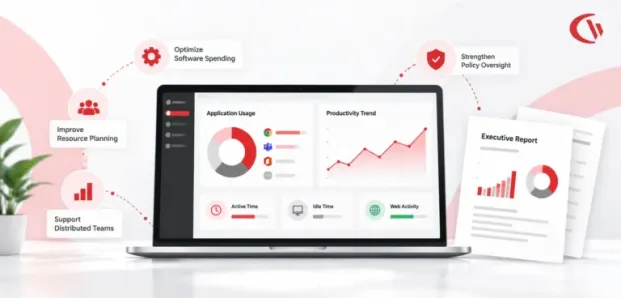
Executive workforce activity reports translate login and logout data into business context. For instance, app usage reports can reveal unused applications, subscription redundancies, and whether employees have the apps they need. Similarly, web activity reports can provide insight into business-related Internet traffic and allow organizations to compare their usage against acceptable use policies.
BrowseReporter reporting solution supports these types of analysis through application and website reports, active and idle time, bandwidth monitoring and scheduled reporting. With this tool, organizations can analyze individual user or team activity and make data-informed decisions for better workflow.
How Dashboards Turn Activity Data into Executive Insights
Raw activity reports are excellent for research, but executives sometimes need a qualitative overview of how the data affects the business. Dashboards bridge the gap between raw data and this more qualitative analysis.
For example, an app usage dashboard enables IT and finance teams to analyze software usage by department. A utilization dashboard offers an additional data point on recorded productive activity in relation to total anticipated working hours, and bandwidth dashboards can flag excessive network bandwidth consumption. Dashboards can be customized to present only the relevant widgets so managers can zero in on their key performance metrics.
BrowseReporter includes default reports for sites you visit, browse categories, bandwidth use, and application use. Reports can be totals, breakdowns, hourly, or computer- or user-based, and can compare computers. You can create them on demand or schedule delivery to streamline reporting.
Why Executive Workforce Activity Reports Matter
These reports connect day-to-day digital activity to broader business priorities:
- Optimize software spending: Identify applications with low recorded usage, investigate overlapping functionality, and evaluate whether license allocations should change.
CTA – Calculate your software spending - Improve resource planning: Identify workload patterns and potential capacity constraints that warrant further investigation.
- Support distributed teams: Compare activity patterns across remote, hybrid, and office-based work arrangements without assuming that every team should follow the same working pattern.
- Strengthen policy oversight: Review relevant website, application, and bandwidth activity against documented organizational policies.
- Improve accountability: Establish consistent reporting practices that help managers discuss operational concerns using recorded evidence rather than assumptions.
Key Metrics Leadership Cares About (vs. Tactical Noise)
For the C-suite executives, workforce analytics must tie computer usage to revenue, labour costs, and capacity. Rather than pulling activity logs, leadership should be looking at metrics that help with numbers planning and operational realization:
Software License Metering & SaaS Cost Optimization
Unused software subscriptions can be a huge waste. Cost optimization is a critical IT priority according to the Flexera State of ITAM Report. Monitoring license utilization across departments allows finding applications with low adoption, duplicated subscriptions, or licenses that can be reassigned. Usage reports can facilitate this review, while procurement data enables us to estimate savings. According to Cledara SaaS Spend Data, organizations with over 200 employees can save up to 48% on software expenses simply by implementing usage-based optimization.
Active vs. True Idle Worktime
Workplace monitoring based on keyboard and mouse activity cannot alone reliably identify productivity. Employees will utilize their work time effectively by being on video calls, reading documents, and working together, even if they aren’t always actively interacting with their computer. Productivity tools must report on actively and idly recorded time separately and provide this data in conjunction with other work activities and work results. Gallup’s research of accountability at work confirms that designing a culture that actively supports engagement and performance expectations.
Workforce Cost Summary & FTE Capacity
Full-Time Equivalent (FTE) capacity can assist the executive team in making staffing decisions and matching workload to capacity. By comparing planned hours of operation with workload, staffing, and results, you can identify capacity shortfalls. Converting those validated shortfalls into projected staffing costs can assist management and the executive team in prioritizing resources; not all recorded computer inactivity should necessarily be recorded as ‘lost productive time’.
How to Pull App Usage Reports to Show Management What the Team Is Doing
The following tips can help you effectively gather and categorize application data and generate executive-ready application reports to share with management. With a workforce analytics platform like CurrentWare Browse Reporter, IT administrators can see application and website usage, trends, and management insights without resorting to intrusive surveillance:
Step 1: Organize Users and Devices by Department
Organize users and devices based on the business units they serve. For example, Finance, Engineering, Legal. If possible, synchronize user data with Active Directory (AD) or Microsoft Entra ID for reporting by department instead of by individual device, making it easier to see the teams’ usage patterns and variations in software needs.
Step 2: Identify Applications and Their Business Purpose
Evaluate frequently used apps and categorize them based on their purpose, e.g., collaboration, communication, design, business software. Map usage with MS 365, ERP and other design apps to determine the extent to which certain apps are being used versus the number of subscriptions. Do not infer that any apps are productive or unproductive as employees’ tasks vary.
Step 3: Configure Reporting Filters and Idle-Time Rules
Adjust reporting periods, categories of users, and activity filters to limit artefacts. When comparing the length of idle time, consider collaborative tools and activities that require little input from a keyboard or mouse. If the system offers relevant exclusions or detections, set them in line with any recorded policies, and test before reporting to management. Recorded activity is not a proxy for productivity.
Step 4: Generate Application Usage and Activity Summaries
Choose the appropriate department, users and reporting period, whether that’s the last 30 days or year-to-date. View the most-used applications, how long they were used, and usage trends to identify what to explore further.
BrowseReporter tracks application and web activity, showing IT teams what software users are working with. When feasible, use this with subscription expenses, purchase data, and other consequences to gather a picture of how the software is used and any likely cost savings. Financial conclusions are dependent on licenses and cost information, not application activity.
Step 5: Schedule Reports and Control Access
Implement scheduled reporting so that executives will get the pertinent summaries without having to go through the detailed raw activity logs. Utilize the scheduled reporting and access-control capabilities available to surface the information to the people it is meant for. Restrict access to granular individual information and employee pay information.
An effective reporting process gives management a real-time view of application usage, adoption, and operational trends. IT teams can help management make smarter decisions about technology investments and resource deployment while respecting user privacy by publishing reports aligned to business goals and providing context to interpret activity data.
Filtering the Noise: Ethical Reporting in 2026
Executive reporting breaks down when you cross into surveillance. With stricter laws on the horizon, it is incumbent upon IT leaders to enable controls to monitor hybrid environments remotely, guarantee legal compliance and, ultimately, present defensible data.
Workplace AI monitoring tools are under intensified regulation. The EU AI Act designates. many tracking tools as “high-risk,” mandating human oversight and disclosure, with fines of up to €35 million. US HIPAA regulations have also been strengthened to require more monitoring and access controls.
To navigate this landscape, organizations should adopt tools that prioritize workforce intelligence over micromanagement. For example, CurrentWare deliberately avoids invasive practices like continuous keystroke logging or audio capture and offers self-managed on-premises or private cloud deployments that keep data sovereignty fully under the customer’s control. By relying on IP addresses and default gateway MAC addresses for Location Tracking rather than invasive GPS coordinates, companies can track remote, office, or hybrid attendance trends without violating personal privacy boundaries.


