

It is possible that your work computer knows more about the workday than you do. Sites browsed, applications used frequently, idle time, screenshots, bandwidth consumed, and even the AI tools accessed might all be accessible to your organization, depending on the software and policies your organization has in place.
It does not automatically mean that your employer is spying on every single thing you do, but using methods ranging from simple web filtering and security logs to sophisticated productivity tracking and screen-capture technology, monitoring exists on a wide continuum. So, in essence, your question is not, “Is my company monitoring my work laptop?” but rather “, What is being monitored, how do I find out, and what are my rights?”
As remote and hybrid work continue to blur the lines between work and life, this concern has become even more pertinent. In particular, the U.S. Federal Trade Commission notes the growing prevalence of worker surveillance tools, ranging from location tracking and communication monitoring to software that gathers information about a worker’s physical or emotional well-being.
Here, we outline practical strategies to detect employee monitoring software on both Windows 10/11 and macOS, distinguish between spying and regular activity, establish the limitations of monitoring devices, and roll out monitoring ethically as an employer.
How Can You Tell If Your Work Computer Is Being Monitored?
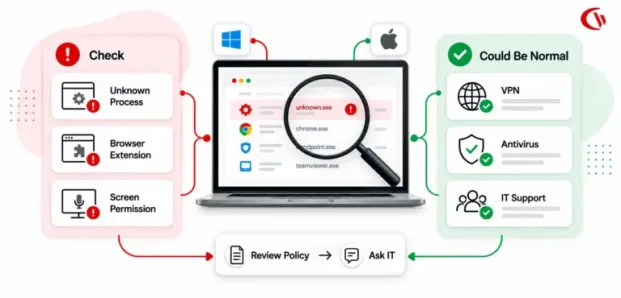
The first thing to realize is that employee monitoring is not always transparent. There are obvious applications that display a dashboard or icon. However, there are also background programs that run as Windows services, startup items, browser extensions, mobile device profiles, or hidden agents.
Monitoring at the network level would not necessarily even require software to be installed on a computer. One abnormal process does not prove that you are being spied on. An IT management system, antivirus, remote support tool, VPN client and device management suite will produce the same symptoms.
Common indicators include:
- An unfamiliar application or background process
- A company-installed browser extension
- An unexpected device-management or configuration profile
- A monitoring agent running as a Windows service
- Unusual network connections to corporate or third-party servers
- Security or privacy permissions granted to unfamiliar applications
- Software that records screenshots, application usage or browsing activity
- Company policies specifically mentioning web, application, screen or activity monitoring.
What Are the Different Ways to Detect Employee Monitoring Software?
There are several ways an employee can identify employee monitoring software, and the specific methods available depend on the operating system in use and how the company’s tools have been deployed. Keep in mind it may be difficult to detect advanced enterprise monitoring solely from the endpoint perspective. Network-based monitoring, cloud-based security platforms and centrally administered systems might still provide visibility.

The most useful approaches to detect employee monitoring software:
- Check installed applications
- Examine running processes
- Review startup and login items
- Inspect background services and agents
- Check browser extensions
- Review network activity and connections
- Examine device-management and security permissions
- Review company policies and ask IT what is monitored
How to Detect Monitoring Software on Windows 10/11
There are many locations within Windows where monitoring software can be detected. These checks allow you to identify the programs, services and agents that may be installed on your machine. Do not assume that every application you don’t recognize is monitoring software. Companies utilize many valid IT and security utilities which you may find unfamiliar. Do not remove corporate software simply because you are not familiar with it.
A misstep such as deleting an IT-supported monitoring/security agent could break company policy or your computer.

1. Check Installed Apps
On Windows 10 or Windows 11, open:
Look through the list for unfamiliar programs.
- Employee monitoring
- Productivity tracking
- Activity monitoring
- Remote management
- Endpoint management
- Web filtering
- Screen capture
- Application usage
- Remote support
- Data-loss prevention
2. Examine Processes in Task Manager
Task Manager provides another way to check computer activity.
Then examine the Processes and Details tabs.
Look for unfamiliar processes that:
- Start automatically
- Continue running when you are not actively using a related application
- Consume CPU or memory
- Remain active for long periods
- Have names that correspond to monitoring, remote administration or endpoint-management software
You can right-click a process and select options such as Open file location or view its properties. This can help you determine whether the process belongs to a legitimate installed application.
3. Review Startup Applications
Monitoring tools frequently need to launch automatically when the computer starts. In Task Manager, select:
Startup apps: Look for programs that are configured to launch automatically.
You can also review startup-related settings under Windows Settings.
Pay attention to unfamiliar applications that:
- Launch at startup
- Have a high startup impact
- Are associated with remote management
- You do not remember installing
Again, a startup entry is not automatically surveillance software. Antivirus, VPN, cloud storage, collaboration, and device management applications commonly start on Windows.
4. Examine Windows Services
A more advanced method is to examine Windows services.
The Services console displays background services operating on the computer.
Monitoring and endpoint management products may operate via services because services can run continuously without requiring a visible desktop application.
Look for:
- Unknown service names
- Services associated with remote management
- Endpoint agents
- Activity collection components
- Web filtering services
- Security or DLP agents
If you find something suspicious, check its Properties to identify the executable or service description.
⚠️ Warning: Do not shut down or disable an unknown service just to determine if you are being monitored. Doing so on a business computer may disable security measures or be against company policy.
5. Check Browser Extensions
Browser extensions are another important place to detect monitoring software. In Chrome, Edge or another managed browser, open the extensions page and review installed extensions.
Monitoring-related extensions can potentially support:
- Website filtering
- URL categorization
- Data-loss prevention
- Security monitoring
- Browser activity reporting
- Productivity controls
Corporate browsers may also be managed by your organization.
If you see wording such as “Managed by your organization,” it indicates that administrators have applied browser policies. It does not necessarily mean that the browser is recording every action you take.
For example, the organization may simply enforce:
- Approved extensions
- Security settings
- Safe browsing policies
- Password policies
- Website restrictions
6. Check Network Connections
Monitoring does not always depend on a visible application.
Network activity can sometimes reveal that your computer communicates regularly with corporate or third-party servers.
Windows provides several tools for inspecting network activity, including:
- Task Manager’s network information
- Resource Monitor
- Windows Defender Firewall
- Command-line networking tools
You might see many ongoing connections to corporate networks or the cloud. An unknown connection should therefore be investigated and not assumed to be employee monitoring.
7. Check Security and Privacy Permissions
Some monitoring technologies require elevated permissions. Depending on the software, administrators may configure permissions related to:
- Screen recording
- Accessibility
- Network filtering
- Device management
- Application control
- Security monitoring
If you discover that a company application has extensive permissions, ask your IT or HR team: What information does this software collect, why is it collected, who can access it, and how long is it retained?
8. Review Your Company’s Monitoring Policy
Your employer may already have told you that data and apps are monitored by your organisation.
Check:
- Employee handbook
- Acceptable-use policy
- IT security policy
- Privacy notice
- Remote-work policy
- BYOD policy
- Employee monitoring policy
- AI-use policy
Look for terms such as: web monitoring, application monitoring, screen capture, activity logging, endpoint monitoring, productivity analytics, data loss prevention, AI usage monitoring, or internet usage monitoring.
How to Detect Monitoring Software on macOS
Mac users can also perform several checks to identify monitoring, management and security software.
1. Review Applications
Look for unfamiliar applications associated with:
- Employee monitoring
- Remote access
- Endpoint management
- Security
- Web filtering
- Data-loss prevention
- Productivity analytics
Search the application name online using the vendor’s official website.
As with Windows, do not remove corporate software without authorization.
2. Use Activity Monitor
Activity Monitor allows you to examine running processes and their CPU, memory, energy, disk and network activity.
Look for unfamiliar processes that remain active for extended periods. You can investigate a process to learn more about the application responsible for it. But remember: macOS itself runs numerous background processes. A process you don’t recognize is not automatically monitoring software.
3. Check Login Items
Review applications that:
- Open automatically
- Run in the background
- You don’t recognize
Monitoring agents frequently need persistent background operation, making Login Items a useful place to investigate.
4. Review Device Management Profiles
On organization-managed Macs, administrators may deploy configuration profiles or mobile-device-management controls.
The exact interface can vary by macOS version.
A management profile can enforce security and configuration policies without being conventional “employee monitoring software.”
For example, it may control:
- Password requirements
- Security settings
- Software installation
- Network configuration
- Certificates
- Approved applications
5. Check Privacy & Security Permissions
Review permissions involving:
- Screen Recording
- Accessibility
- Full Disk Access
- Input Monitoring
- Files and Folders
These permissions are very important, some monitoring or remote assistance technologies do require administrator access if you see one of these unfamiliar application permissions relating to recording your screen or asking for accessibility, query what function within that application would require the permission with your workplace.
6. Examine Browser Extensions
Check extensions in Safari, Chrome, Edge or Firefox.
An organization may deploy extensions for:
- Web filtering
- Security
- DLP
- Browser management
- Activity monitoring
An extension does not necessarily capture everything you do. Its capabilities depend on its permissions and configuration.
Six Signs That Usually Aren’t Monitoring
Computer users may confuse common computer behaviors with surveillance. Here are six frequently recognized examples that are not necessarily monitoring:
1. Your laptop slows down
High CPU and memory usage problems can occur due to Windows updates and/or antivirus scans, the number of open tabs, and synchronization with cloud storage services. In some cases, they are caused by large programs.
2. The fan starts to run often
The frequent running of fans is due to video conferences, updates, and resource-intensive software.
3. “Managed by your organization” is displayed by the browser
In this case, browser policies may have been imposed by an administrator. Their activity does not include automatically recording your screen.
4. A new, unknown Windows process shows up
Your Windows machines and any installed applications are constantly launching processes in the background- hundreds, in fact- so an unknown process should initially cause only suspicion and investigation, not outright dismissal.
5. The computer is connected to your business VPN
While a business VPN might allow your corporate security apparatus to access your network traffic, it will not enable it to monitor your screen directly.
6. The machine is periodically pinging the company servers
Security updates, authentication requests, cloud apps, endpoint protection clients, and management tools all need to communicate with corporate servers.
What Employee Monitoring Software Can and Cannot See
Capabilities for employee monitoring differ significantly.
Some monitor application usage, idle time, bandwidth, or AI usage; others track visits to certain websites only, or even take periodic snapshots of employees’ screens. CurrentWare’s BrowseReporter documentation stated that it could report not only website activity but also application usage and bandwidth (or AI usage), and, where and when set to do so, could capture snapshots of users’ screens.
Depending on configuration, monitoring software may be able to see:
| Information | Possible? |
|---|---|
| Websites visited | Yes |
| Application usage | Yes |
| Time spent on applications | Yes |
| Active/idle periods | Yes |
| Bandwidth usage | Yes |
| Screenshots | Some tools |
| Login/logoff activity | Some tools |
| AI websites used | Increasingly yes |
| Search activity | Some tools |
| USB/device activity | With endpoint/DLP tools |
| Keystrokes | Some specialized products |
| Webcam/audio | Possible with specialized tools, but much more intrusive |
What it generally cannot automatically see
Monitoring software does not automatically have unlimited access to:
- Every thought or action away from the computer
- Your personal devices simply because you own a work computer
- Encrypted content merely because a monitoring agent exists
- Information outside the software’s permissions and configured scope
- Everything occurring in your home
However, if you have installed company management software on your private laptop and/or engage in a personal activity in a business environment using the business’s services, the case might vary.
FTC has also issued a particular statement on the monitoring of workers’ activities and has said that the observation is able to go beyond the usual places to cover workers working from home via private devices, to explain the reason why transparency and scope limitations should be emphasized.
Is Employee Monitoring Legal in the US, Canada and UK?
Yes, employee monitoring may be legally permissible in all three jurisdictions; however, the legality depends heavily on the method of monitoring used, the reason for the monitoring, the type of notice or consent required, and employees’ right to privacy as dictated by each State/province. It’s in this type of area that companies should seek legal counsel and not expect a single uniform policy.
United States
There is no one broad federal employee monitoring law. However, existing federal laws may come into play depending on what you are monitoring, such as the Electronic Communications Privacy Act/Wiretap Act, which governs the interception of wire, oral, and electronic communications (subject to statutory exceptions). State laws may also require specific steps.
The better general advice is therefore: Monitor legitimate business activity, give proper notice, and collect only what you need, without using surveillance in a way that affects protected employee rights.
Canada
In terms of workplace monitoring, Canada offers clearer guidelines on employee privacy. The Office of the Privacy Commissioner of Canada says employees do possess privacy rights when using employer-provided technology, and advises that any monitoring be “reasonable, proportional and minimally intrusive,” as well as transparent. PIPEDA applies when using company data belonging to employees of federally regulated companies.
The Office of the Privacy Commissioner of Canada (OPC) notes that this monitoring includes keystrokes, emails, and web browsing, and advises implementing a policy that clarifies how the collected information is used and what data the company collects.
United Kingdom
The UK’s Information Commissioner’s Office (ICO) says employers can monitor workers, provided it meets data protection requirements. Employers should seek to balance their need to act with workers’ right to privacy. ICO’s key principles in surveillance and monitoring are proportionality, transparency, and purpose limitation. Specific ICO advice on remote working, AI monitoring, screen recording, location, email scanning, etc is available.
The ICO stresses proportionality, transparency and purpose specification. It gives concrete advice on: monitoring employees remotely, using artificial intelligence, monitoring employees via screen and keyboard monitoring, GPS/location tracking, email monitoring technology, and similar.
What to Do If You Find Monitoring Software
If you discover software that appears to monitor activity, don’t immediately delete it.
Instead:
1. Identify the software: Record its name, publisher and general function.
2. Read your workplace policy: Find out whether the software is disclosed in your employee handbook or privacy notice.
3. Ask IT: A simple question can resolve the uncertainty: “Could you explain what this application monitors and what information it sends to the company?”
4. Ask about retention
Find out:
- What data is collected?
- Who can access it?
- How long is it retained?
- Is it shared with third parties?
- Is it used for performance evaluation?
5. Separate work and personal activity
Avoid using a company device for sensitive personal activity whenever possible.
6. Escalate legitimate privacy concerns
If the software appears to collect information beyond its stated purpose or policy, consider speaking with HR, your privacy officer, an employee representative, or an appropriate regulator/legal adviser.
For Employer: How to Introduce Employee Monitoring Software Ethically
Employee monitoring software provides useful information about trends in employee productivity, helps protect corporate data and identify security threats, and enables the support of dispersed and hybrid teams. An issue arises when employees do not know what they are being monitored for and why that data is collected and how it will be used.
Therefore, ethical considerations lie in openness and transparency, with proportionality, and the confinement of the use of data to the specified purpose. Business employers should use monitoring as a means to meet legitimate business targets-not with the aim to impose a state of surveillance.
A practical approach is to follow five principles:
Purpose → Proportionality → Transparency → Protection → Accountability
Organizations should periodically ask:
- Are we collecting more data than necessary?
- Are employees aware of the monitoring?
- Is the data actually helping achieve its stated purpose?
- Who is accessing the information?
- Are retention periods appropriate?
- Have complaints or concerns emerged?
- Could a less intrusive approach achieve the same objective?
Companies implementing employee monitoring software should have a clear and transparent policy. Employees should be informed which data is monitored, the purpose for which data is being collected, and how the data will be utilized. Only data which can be traced to legal business needs should be monitored. Employees should not be put under constant scrutiny, and the data collected should be secure and be an option for employees to ask questions, with the right employee policy you will be able to promote workplace safety, productivity, and employee privacy.
What Are the Benefits of Ethical Monitoring for Employees?
Employee monitoring is frequently discussed solely from an employer perspective. When conducted appropriately, it may indeed be in an employee’s interest:
Neutral work decisions
Managers could leverage accurate activity data to inform discussions about process problems, making decisions about issues less about hunches and more about observable behaviour.
Enhanced cybersecurity
Through the data collected by monitoring systems, security issues such as unwanted applications or websites could be detected before they become larger problems, helping keep both the organization and its workers safe.
Reduced software bloat
Organizations can leverage information about what is actually being used to remove unused and obsolete software applications.
Balanced task assignment
Managers can utilize activity and application data to understand which parts of the workflow are running smoothly, where workers might be overloaded, and where processes could be more efficient. However, managers should focus on improving processes rather than penalising employees for inactivity.
Greater visibility for remote employees
For hybrid employees, showing productivity in an office setting can be challenging when supervisors can’t observe firsthand work on the process; a responsibly implemented monitoring solution can add process transparency without requiring increased frequent interaction.
Clearer business expectations
Clear, open monitoring leads to employees with well-defined expectations and awareness regarding exactly how employee information will be gathered and used.
Why Is CurrentWare a Strong Choice in the Modern Workplace?
CurrentWare offers features to address the dual needs for transparency, security, and employee privacy, not solely as monitoring or surveillance functionality.
- BrowseReporter for employee web and application activity monitoring
- BrowseControl for web filtering and application blocking
- AccessPatrol for device control and data-loss prevention
- enPowerManager for PC power and logon management
The CurrentWare platform can be used in both cloud-hosted and on-premises versions and gives businesses visibility into their internet browsing activities, the applications running on their systems, the idle periods of their PCs, their bandwidth usage, and the use of their AI tools.
A particularly important advantage is that organizations can combine monitoring with policy enforcement. For example, BrowseControl can restrict websites or applications, while BrowseReporter can provide visibility into web and application usage.
This makes CurrentWare useful for organizations that want to move beyond simple employee surveillance toward a broader approach involving:
The platform also supports Windows and macOS monitoring, making it relevant to organizations operating mixed endpoint environments.
Conclusion
How can I tell if my work computer is being monitored? As companies embrace remote work, endpoint security, productivity analytics and AI governance, the question grows in urgency.
Tech-savvy employees can identify employee monitoring software by checking a number of areas for installed applications, Windows services, Task Manager and startup applications, browser extensions, network and internet activity, as well as the permissions of each and every program installed or to be installed. Similar tests for Mac include activity monitor, login items, device management, browser extensions and privacy and security.
However, discovering technology is not the answer.
Not all unexpected programs installed on your computer amount to monitoring of employee activity. In fact, it is common practice to install management and monitoring programs for security, IT administration and employee support. On the other hand, much more covert monitoring programs might escape detection.
By far the best route to find out what is going on with your machine is to complement those technical investigations with awareness of company monitoring policy and the company’s approach to employee privacy.
The objectives and procedures for employer monitoring should be straightforward: employee monitoring is not about being able to monitor everything; instead, it is about smart, purposeful monitoring and it must be transparent, proportionately carried out and privacy-preserving.
Whether it is used to monitor and secure proprietary information, measure application utility, track internet usage and limit network security vulnerabilities, or monitor AI usage, all technology should be in place and designed to meet a clear business necessity while at the same time respecting the privacy of employees.
Frequently asked
Frequently Asked Questions:
-
To identify unseen monitoring software you can examine your installed apps, active processes, startup programs, browser add-ons, background services and device management configuration. For Windows, it is accessible through Task Manager and the Apps & features section of settings, on Mac you should view those and Login Items and Device Management.
However, note that not every ‘unknown’ process is a monitoring program. It is generally safer to review your company’s monitoring and privacy policies and ask the IT department what data they collect and for what reasons.
-
Yes, monitoring software is capable of running in the background and cannot display an on-screen icon and/or message of itself, running as a background process, service, browser plugin or mobile-device management agent. With appropriate configuration monitoring can take screenshots or record web usage, program access or idle time without any telltale indication on the screen itself-again only legally, provided you had clear company policies and a notification.
-
Yes, employee monitoring software can capture employee activity beyond standard work hours, depending on the software’s settings, the device being monitored, the employee’s work arrangement and the employee’s employer policies.
For instance, employee activity on a company-provided computer may be collected after work hours, as long as monitoring software remains running. Employers need to openly disclose information about monitoring, including its duration and methods, and adhere to all privacy rights and employer laws.
-
Yes, you may request your employer to be clearer regarding their activities monitoring your private matters, especially if your work computer activities are monitored after work hours, and it also accumulates data not pertinent to your task.
It is recommended that you check your company policy (privacy and computer use) first. Later, you may raise your complaint with the IT department or human resources.
-
It depends. In some instances, monitoring software can appear as a process or background service within Windows Task Manager, and yet it could use a generic process name and run in the background and be integrated into other, less noticeable system processes, or it could be controlled centrally and not obvious to the worker. Task Manager can detect monitoring software to some extent; however, it is not a reliable way to determine whether your work computer has monitoring software installed.
-
Your employer generally cannot directly monitor your personal computer and/or cell phone just because you’re an employee. Monitoring may be permissible if you install the required business management or security software; use a business VPN connection; or log in to business systems that keep records of access and actions. Such guidelines will vary by locale and particulars. Ask your employer to clarify these matters by referring to their company’s privacy and monitoring policy.
-
Some office software does allow access to your computer’s webcam. However, those with access cannot turn it on and watch you whenever they feel like it. How it is monitored depends on the company’s software, your computer permissions, your employer’s use of the webcam, and state/ federal laws.
-
No. A VPN will not prevent employees from being monitored with most software. A VPN will encrypt traffic going to and from your computer but the software on the computer can still track how you are working, like what apps you are using, what websites are being visited, any idle time, or screenshots and because it is being run on a work PC there can be other monitoring and security programs installed in the computer which can also work separately from the VPN.
-
Generally, you should not uninstall or disable employee monitoring software from an employer-provided device without authorization. Tampering with this software may result in disciplinary action under workplace policies and may circumvent security protocols and controls.
If you believe that employee monitoring software is infringing upon your privacy due to excessive personal data collection, you should access your workplace’s monitoring policy and then seek further information from your IT or Human Resources department. They will explain what information is being collected and why the software may be altered or removed.
-
No, not always. Employee monitoring can be lawful, but the legality varies depending on where you are situated in the world, the kind of monitoring you undertake, whether your employees have been appropriately informed, and how you will use the information collected. Employers need to have a clear employee monitoring policy, notify employees accordingly, collate only the necessary information, and adhere to applicable laws.
-
Probably. Using a work-issued computer, browser, network, and/or monitoring system might still allow your employer to access the sites you browse and your search queries, among other data, depending on your configuration and the associated programs. Using a personal computer and network is much safer, but can still be logged if you use certain corporate accounts and programs or systemwide safety programs.
-
Do not immediately delete or deactivate it. Research the program and review your employer’s monitoring or acceptable use policy or privacy statement to determine what it records. If it is not evident for what purpose or with what scope, question your HR and/or IT departments for clarification.
If you feel the program is collecting personal information it should not, or is operating beyond the provided usage policy, then record this with supporting information.