
File Blocking
Stop company files from being uploaded to applications, websites, cloud storage, and personal email.
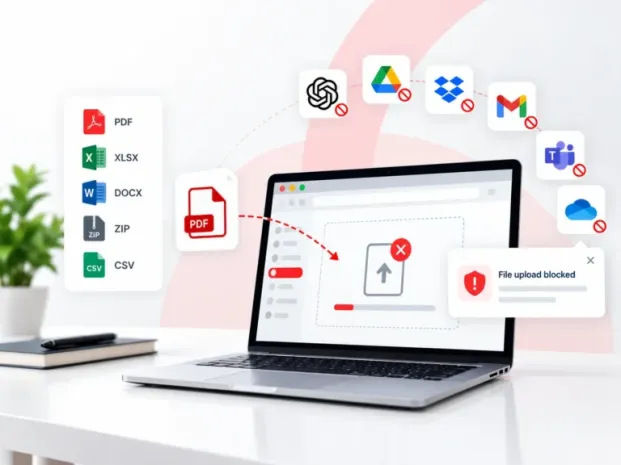

Where does the data from the shared files end up?
Every day, employees upload files into AI assistants, personal email, cloud storage and messaging apps. They aren’t trying to leak any data; they are simply getting work done, but without realising where the data from those files ends up. Without the right data controls, you don’t know which files are being uploaded, or who’s uploading them.
| Option A | Block the service | Your data stays put, but legitimate work stops. | ✕ Lost productivity |
|---|---|---|---|
| Option B | Allow everything | Work continues, but files can leave freely. | ✕ Data leak risk |
| Option C | Allow the app. Block the upload. | Keep the tools your teams rely on, and control which file types can leave through them. | ✓ File Blocking |
Data loss prevention that doesn’t get in the way of work
File Blocking brings data loss prevention controls to AccessPatrol in CurrentWare Cloud. Choose the apps, websites and personal email domains you’re concerned about, pick the file types that shouldn’t leave through them, and apply the rule to the right users or groups. Employees keep the tools they need. Your sensitive spreadsheets, PDFs and archives stay inside the organization.
- Granular by file type. Block every file type, or only the ones that matter, such as .pdf, .xlsx, .csv, .docx or .zip.
- Targeted by user or group. Apply stricter rules to finance or HR, and lighter ones elsewhere.
- Stopped before it’s sent. Uploads and attachments are blocked before the upload or form submission completes.

Set it up in 4 simple steps
Rules are managed from one web console and take effect as soon as you activate them.
- Choose. Pick an application, website, or email attachment destination.
- Block. Block all file types, or only specific ones such as .pdf, .xlsx or .zip.
- Apply. Assign the rule to individual users or groups.
- Activate. Blocked uploads stop instantly, and the employee sees an on-screen notification explaining why.

Three places to draw the line
Turn each rule on or off at any time, and block all file types or only the ones that matter.
Block 1: Applications (pair with the Applications tab screenshot)
Desktop apps
Set upload rules for the desktop apps your teams use every day, such as ChatGPT, Claude, Dropbox, Microsoft OneDrive and WhatsApp.
Block 2: Websites (pair with the Websites tab screenshot)
Websites and web services
Cover AI tools, cloud storage and social sites in the browser, including Claude, Perplexity, Dropbox, Google Drive and OneDrive.
Block 3: Email attachments (pair with the Email Attachments tab screenshot)
Personal webmail
Stop work files from being attached to emails bound for personal webmail domains such as Gmail, Outlook.com, Yahoo and iCloud.

Keep tools open for work, closed for leaks.
Your team wants to use ChatGPT, and you want them to be productive. With File Blocking, ChatGPT stays open for prompts and research, while spreadsheets, PDFs, CSVs, Word documents and zipped files are blocked from being uploaded to it.
Add one more rule, and attachments stop going to personal Gmail, Outlook.com, Yahoo and iCloud accounts. When someone tries to upload a blocked file, AccessPatrol stops it, shows them a notification, and records the attempt so you can follow up.
Nothing slips past unseen
Every blocked upload is logged, so you can see where files are trying to go, who is behind the attempts, and when risk peaks.
Dashboards
See total blocked uploads for any period, the apps and websites with the most attempts, the users and groups with the most activity, and the hours when attempts peak.
Activity log
Who tried to upload what, where and when: user, group, device, destination, block type, email direction, filename, file type and time.
Excel & PDF exports
Filter the records you need and export them for audits, investigations and offline review.
Email masking
Mask email addresses in activity records to reduce unnecessary exposure of personal information.
Built To Work with BrowseControl
Already using BrowseControl? File Blocking works alongside it. If BrowseControl already blocks a website, application, URL, category, schedule or file type, BrowseControl takes priority. File Blocking flags any rule that may be overridden and shows you the related BrowseControl rule where available, so your policies never quietly contradict each other.
Protect your data without slowing anyone down
Lower data exfiltration risk
Reduce accidental and intentional sharing of company files to unapproved destinations.
Safer AI adoption
Say yes to AI assistants while keeping sensitive documents out of them.
Approved tools stay open
Allow the services your teams depend on and block only the risky part: the upload.
Audit-ready records
Exportable activity logs support security, compliance and investigation needs.
Clear risk signals
See which users, groups, destinations and times carry the most risk, and where to tighten controls next.
Privacy built in
Email masking keeps activity records from exposing more than they need to.