
Employee Screenshot Monitoring Software
BrowseReporter is a versatile employee screenshot monitoring software for capturing screenshots of remote and on-premises desktops—even on Terminal Server and Remote Desktop Services!
- Automatic Desktop Screen Capture
- Live Computer Screen Monitoring
- Track Employee Productivity & Idle Tim
- $12/user/month*

 4.8/5 avg.
Trusted by 100,000+ professionals in 55 countries.
*No credit card required · 14-day free trial · For on-prem pricing, contact Sales



Trusted by enterprises, healthcare organizations, financial and professional services firms, and government agencies at every level.







Live Computer Screen Monitoring Software
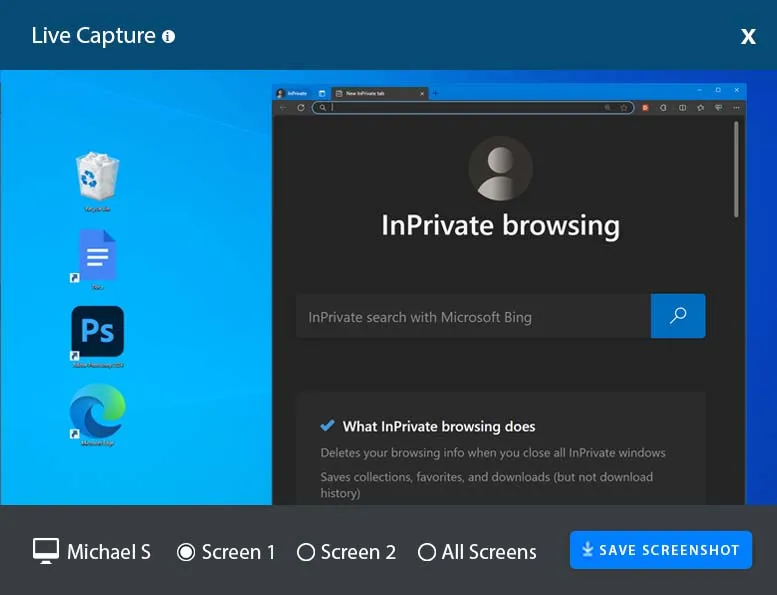
Monitor employee desktops in real time with the remote screen capture feature. Get a live feed of what an employee is doing on their computer and remotely capture screenshots of their desktop.
- Remotely take screenshots of other computers in your network, even on dual-screen setups
- Monitor desktops in real-time to watch for unsafe data handling and inappropriate behavior
- View the screens of employees to check-in on their activity without walking to their desks
See Exactly What Your Employees Are Doing on Their Computers
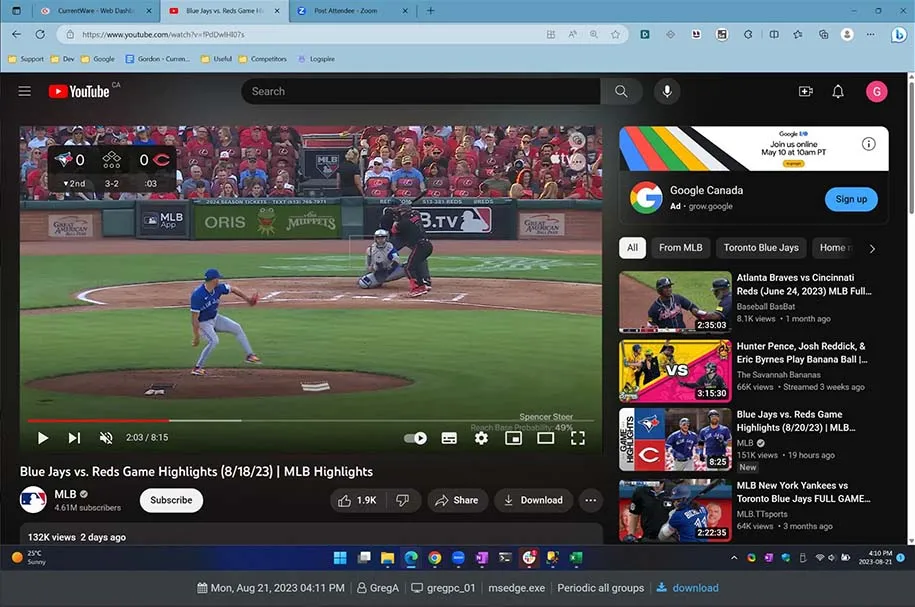
BrowseReporter’s computer screen monitoring feature captures high-resolution and compressed screenshots of employee desktops, giving you a plain view of their computer activities.
- Configure screenshots to be automatically deleted after a set period of time has passed
- Multi-monitor setups are supported, giving you a full picture of what was on each monitor when the screenshot was taken
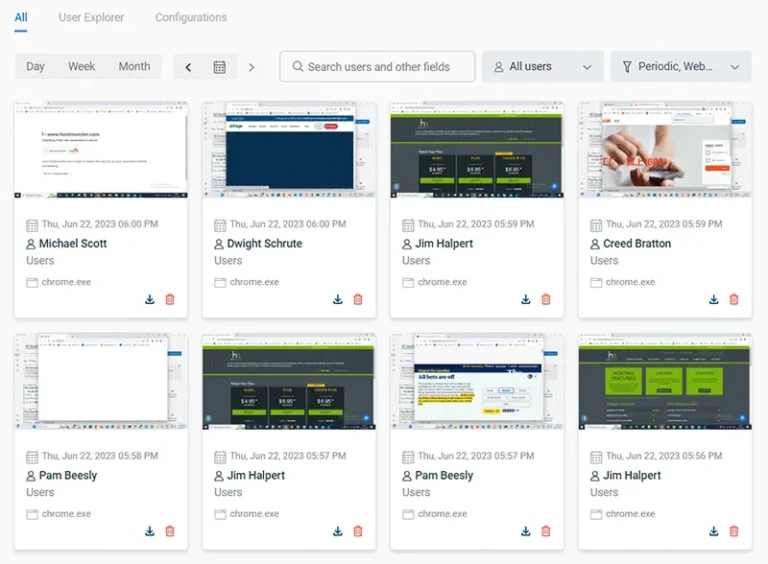
- View screenshots in a photo grid or as a table list; use advanced filters to find the exact screenshots you are searching for
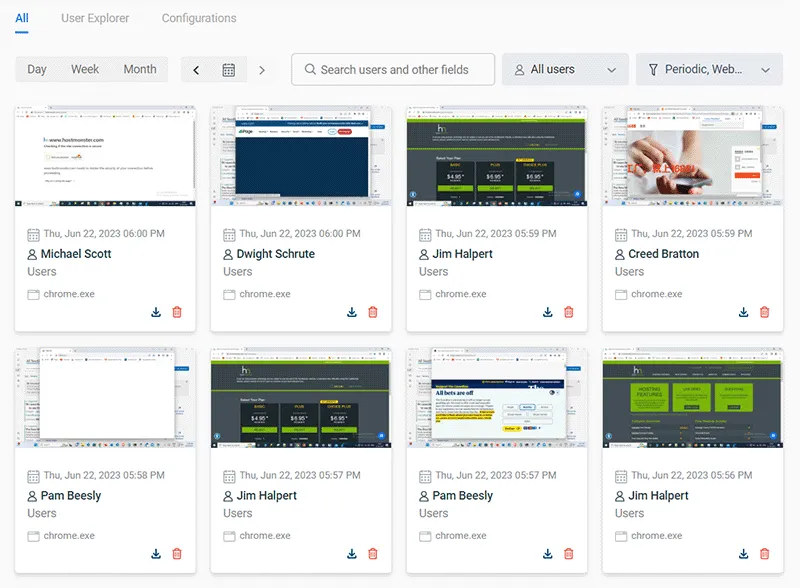
Automatic Screenshot Monitoring at a Set Interval
Continuously capture screenshots for a visual record of employee activities. Compare productivity and activity data to the captured screenshots to understand exactly what your employees are doing.
- Capture screenshots at particular intervals for specific users/computers
- Filter screenshots based on metadata such as productivity grading, application name, and user/PC
- Configure the intervals you’d like screenshots to be taken
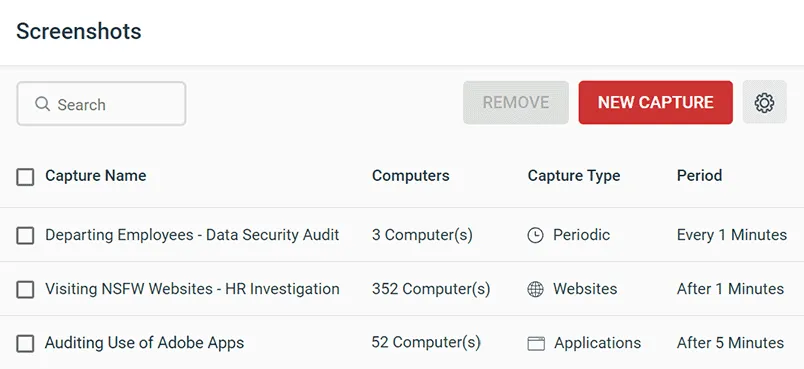
Automatically Take Screenshots When Specific Apps/Website Are Used
The optional desktop screen capture feature of BrowseReporter automatically captures a screenshot of your employee’s computer when they access a specific application or website.
- Capture high-resolution and compressed screenshots of your employee’s desktops; even on multi-monitor setups!
- Get an over-the-shoulder view of your employee’s PC no matter where they are working
- Each screenshot is tagged with the website or application that was being used and the name of the computer
Try BrowseReporter for Free
Fully functional. Easy to use. $12 USD user/month*. For on-prem pricing, contact Sales
See What Our customers Have to Say
CASE STUDY
From Hunch to Hard Evidence—How CurrentWare Informs HR Investigations
CurrentWare strikes the perfect balance between monitoring and trust. It’s easy to set up, and employees go about their work without noticing it.
When needed, we have the data to ensure resources are used properly.

Real-Time Employee Computer Activity Dashboards & Reports
Improve business intelligence with advanced insights into web browsing, app usage, bandwidth consumption, productivity, and more!
- Identify productivity leaks
- Enforce company policies
- Detect software waste
Try BrowseReporter for Free
Fully functional. Easy to use. $12 USD user/month*. For on-prem pricing, contact Sales
Go Beyond Screen Recording With Our Advanced Employee Computer Monitoring Solution
The employee monitoring tools within the CurrentWare Suite go beyond computer screen monitoring to provide the advanced insights you need to detect insider threats, protect sensitive data, measure productivity, and manage your remote workforce.
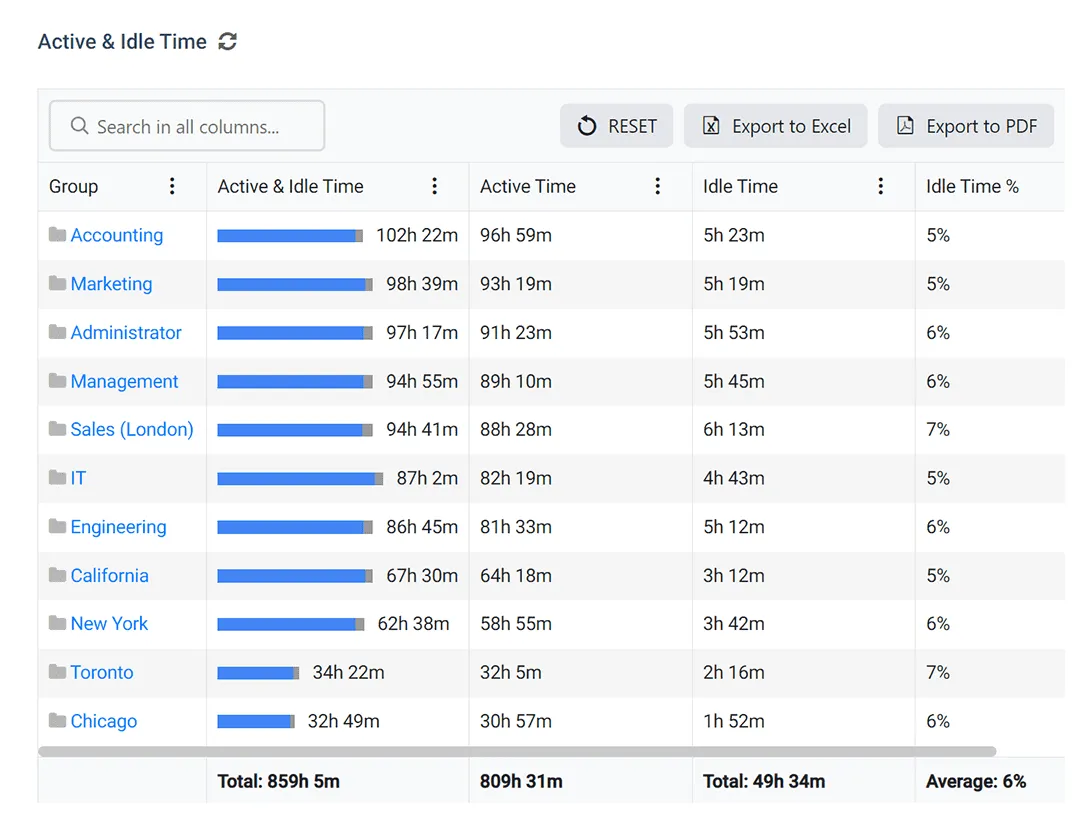
Get Accurate Insights With Idle Time Tracking Tools
- See how much time employees spend actively working on their computers
- Track active and idle times based on mouse and keyboard activity
- Verify that employees are spending working hours on their computers and actively using open programs
Measure Productivity & Employee Performance With Detailed Reports
- Find out if employees are wasting work time on social media, computer games, and other distractions
- Activity dashboards allow for a quick assessment of the productivity of a team or an individual employee
- Compare productivity between time spent in-office vs working remotely to provide flexibility while maintaining accountability
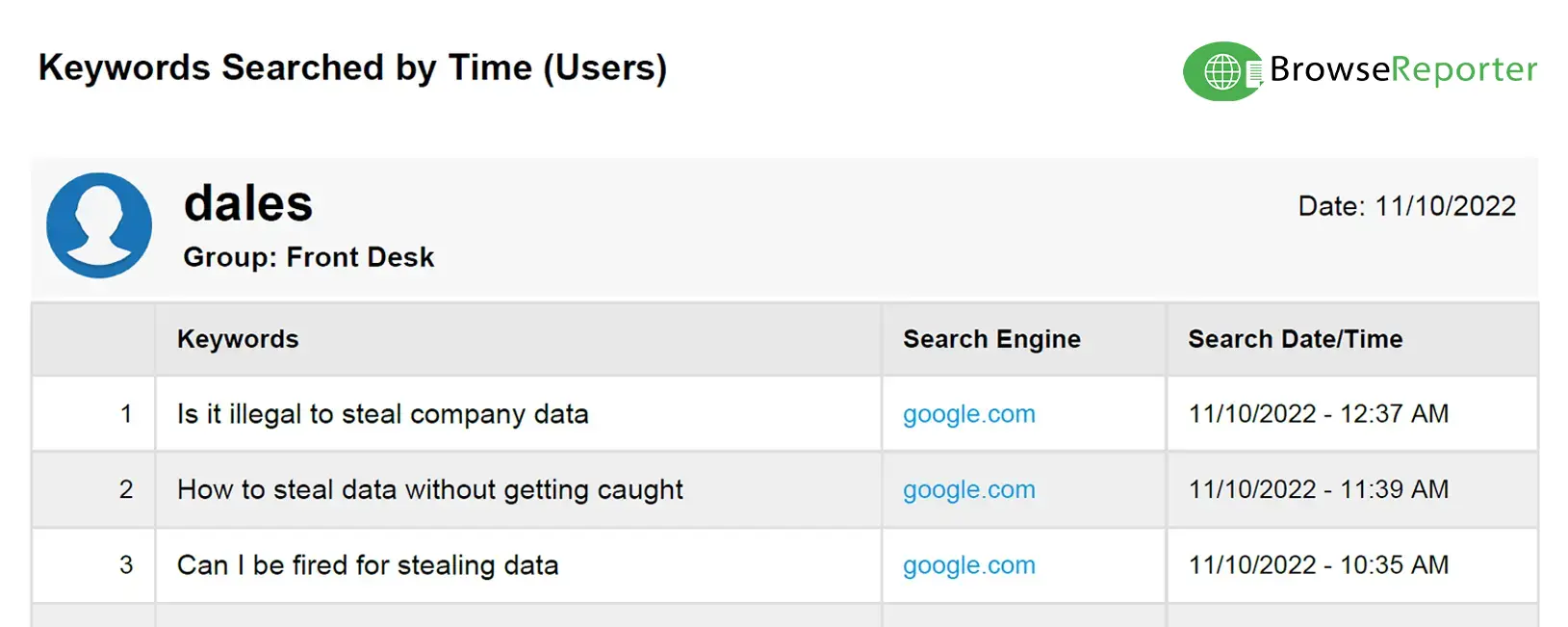
Detect Suspicious Activity With Real-Time Monitoring
- Detect insider threats with historical activity logs of login/logout times, internet use, USB activity, and software usage
- Get alerts of potential data exfiltration to removable media devices by individual users
- Track and restrict file movements across portable storage devices, network share drives, and websites such as cloud storage services
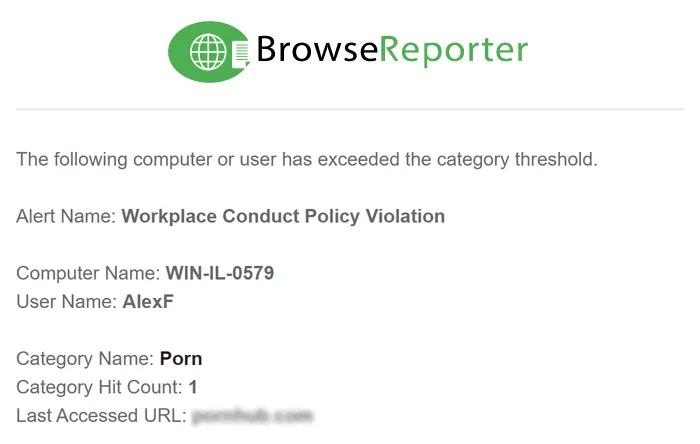
Get Alerts Of Company Policy Violations
- Maintain evidence of the misuse of company assets to proactively address any potential legal ramifications before they occur
- Evidence of employee computer activity supports disciplinary action if an employee is found to have engaged in misconduct
- Discover opportunities to ensure that employees are properly trained in the acceptable use of workplace technology
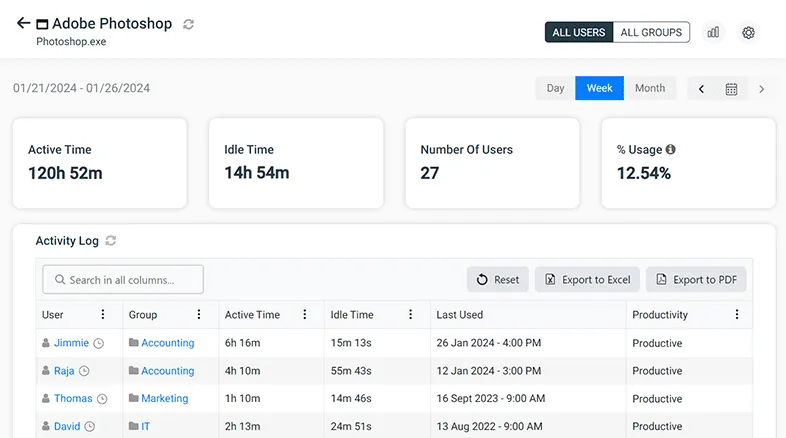
Save Money With Genuine Software Usage Data
- Track SaaS and software usage to detect the use of unsafe or unproductive programs
- Improve software usage tracking in the workplace and better manage software licenses
- Use the drilldown dashboard to find out the utilization rate of specific pieces of software

Monitor File Transfers for Suspicious and High-risk Behavior
- Receive real time email alerts when employees violate your endpoint security policies
- Detect what files have been copied, created, deleted, or renamed on removable media devices, cloud storage services, and network share drives
- Review file transfer activity logs to trace data breaches back to their source
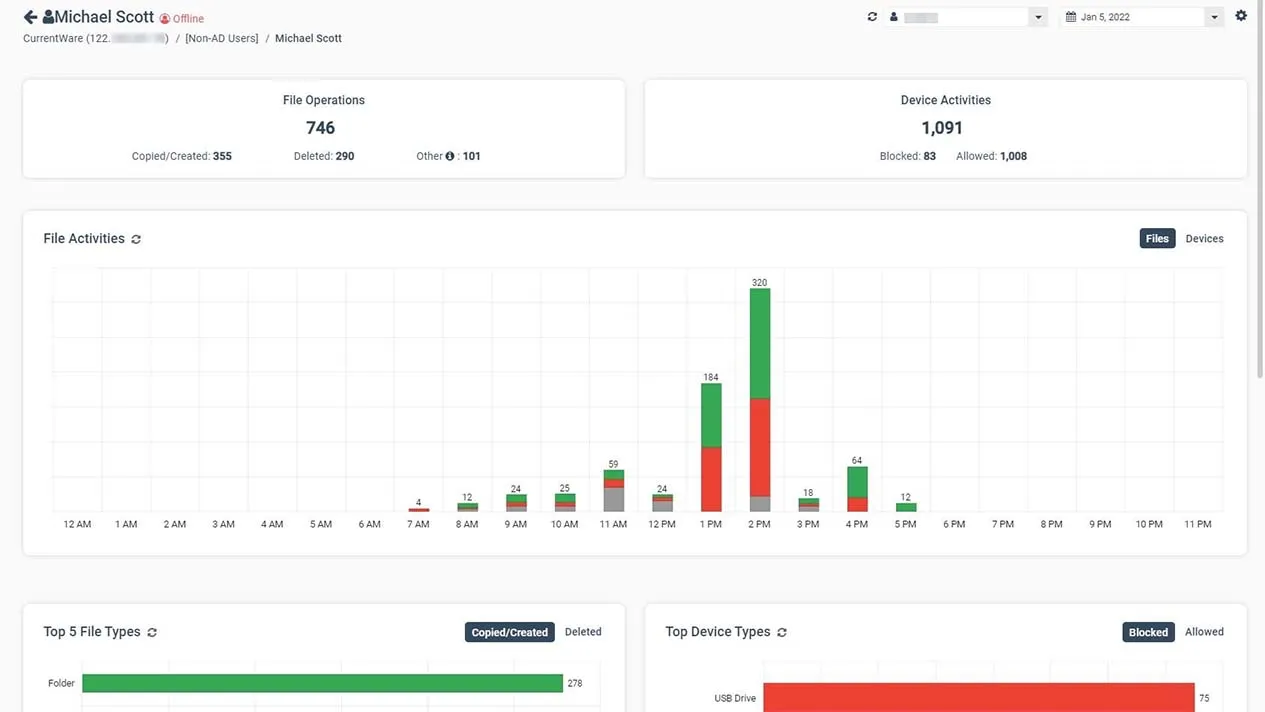
Protect Sensitive Data Against Theft to Insider Threats
- Collect evidence of data exfiltration and potential data breaches
- Prevent the use of unauthorized USB storage devices and cloud storage services
- Track and restrict file movements across portable storage devices, network share drives, and websites such as cloud storage services
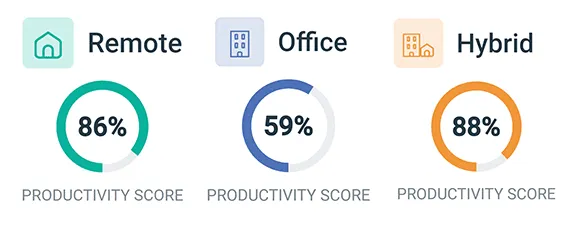
Get Insights Based on Employee Location
- Promote flexibility without sacrificing accountability with insights into how location flexibility affects employee engagement and productivity
- See how much of your workforce is working in-office, remotely, or hybrid in a given timeframe
- Improve productivity & security—no matter where your team members work

Track Login & Logout Times
- Audit logon and logoff times to see how long your employee’s are working at their computers
- Get a record of each time your employees startup, sleep, and shutdown their computers
- Verify that employees are active during work hours and see when they are taking breaks

FREE DOWNLOAD
Internet Use Policy Template
Download this FREE internet use policy to set standards for acceptable internet usage in your organization.
- Disclose the organization’s intent to monitor internet use
- Communicate acceptable standards for technology use
- Describe your users’ rights and responsibilities
How to Improve Employee Productivity With CurrentWare’s Productivity Tracking Software
The CurrentWare Suite provides the visibility and control you need to boost productivity.
See How Employees Spend Their Time
Use our employee tracking software BrowseReporter to track employee activity. Track idle time and internet usage to ensure that team members are focused on their projects and tasks.
- See how much time was spent on unproductive websites and applications
- Customize idle time based on the last keyboard/mouse inputs
- Discover which departments or employees are the most active
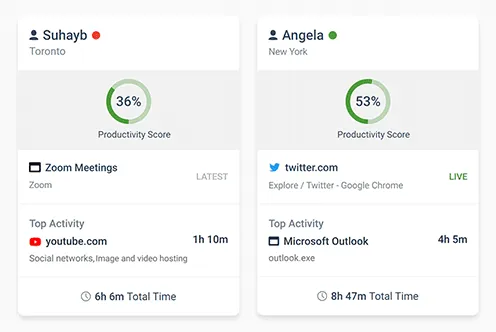
Monitor Your Remote Workforce
Compare productivity trends between remote vs in-office employees, improve visibility, and provide opportunities for flexible employee schedules.
Remote employee monitoring software provides you with a clear picture of when employees are working on their computers so you can rest assured that they are engaged no matter how they like to schedule their time.

Enforce Computer Use Policies
Our employee productivity tracking software gives you detailed evidence of web activity, making it the perfect tool for enforcing internet use policies.
- Empower anti-harassment initiatives with evidence of employees that are visiting inappropriate websites during work time
- Improve security with triggered alerts every time your employees visit high-risk websites including porn, torrents, and file sharing websites
- Track computer activity to collect evidence of unwanted computer usage, then use BrowseControl to block unwanted websites and applications

Empower Business Decisions
- Empower human resources with evidence of users that are visiting inappropriate websites
- Measure trends in employee engagement to find employees that need more support
- Enable flexible schedules with insights into when your employees do their best work

Track Productivity to Deter Time Wasters
Workplace distractions are a major drain on productivity. Track time spent on unproductive websites to increase productivity and ensure your staff is on track when you assign tasks.
Optimize Project Management
Track idle time trends to find out which departments are underutilized or overutilized. Identify opportunities for growth and areas where work processes or task management need to be adjusted.
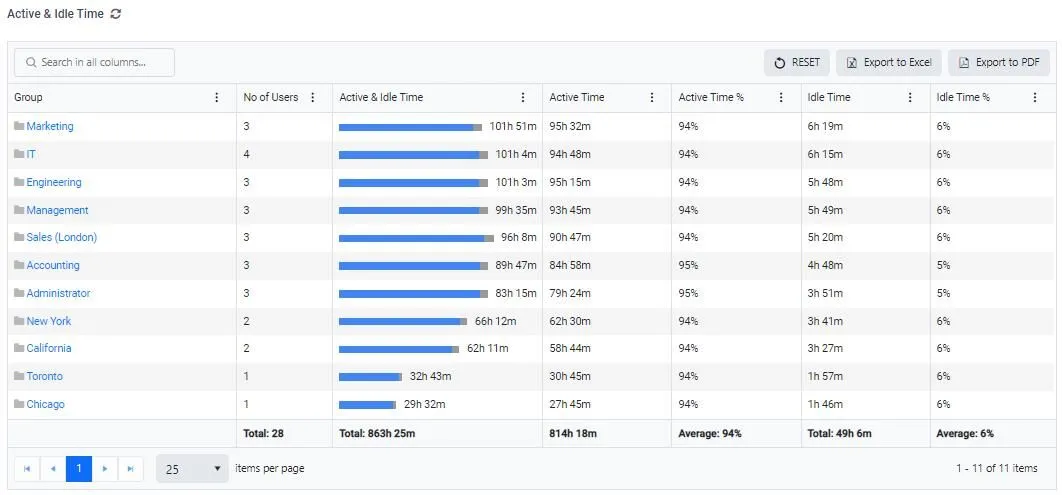
Try BrowseReporter for Free
Fully functional. Easy to use. $12 USD user/month*. For on-prem pricing, contact Sales
Real-Time Employee and Computer Monitoring Features
Email Reports & Alerts
Automatically send reports to designated inboxes based on events or schedules
Tracking Scheduler
Limit activity tracking to specific days and schedules such as employee work hours
Employee Privacy
Optional privacy-enhancing features improve transparency and minimize data collection
Stealth Mode Option
The software can run silently in the background or be configured to alert users
Central Web Console
Save time with a central admin console; optionally integrate Active Directory OUs or security groups
Platform Security
Protect your CurrentWare console with 2FA, passwords, privilege management, and more
Software License Optimization
Optimise your organisation’s software spending with insights about associated costs and usage.
SQL Server Supported
Database scaled for enterprise and large business operations using Microsoft SQL Server
FREE DOWNLOAD
Best Practices for Monitoring Employees
Follow these best practices to increase buy-in for employee monitoring. Learn how to create a monitoring strategy that is transparent, fair, and respectful of employee privacy.
How to Mitigate Potential Privacy Concerns With Employee Screen Monitoring Software
Be Transparent About Employee Activity Monitoring
Employees that are not aware that they are being monitored, why they are being monitored, and how they are being monitored are less likely to find the use of employee computer monitoring software acceptable.
CurrentWare’s employee and computer monitoring software solutions can be deployed with an optional stealth mode or configured to periodically notify employees that they are being monitored.
- Turn on BrowseReporter’s End Users Reports feature to give employees access to their data. This gives them the autonomy to monitor their own productivity.
- Disclose the scope of employee monitoring during onboarding and within company policies.
- Make sure employees understand how data is being collected, what data is being collected, and how it will be used.
Ensure Confidentiality & Privacy for the Employees Involved
While complete confidentiality cannot be guaranteed for all employees involved, the workplace investigation process must be conducted with as much confidentiality as possible for the parties involved.
Any monitoring or data collection should be conducted in compliance with applicable laws and regulations, as well as in accordance with the employer’s policies and procedures.
Additionally, it is essential to maintain the confidentiality of sensitive information and respect the privacy rights of employees during the investigation
Consult With Legal Counsel
When it comes to workplace privacy, both the employee and the employer have rights that vary based on the jurisdiction of the company, as well as any relevant collective bargaining agreements.
Before monitoring employee computer activity for workplace investigations, be certain to consult with legal counsel to understand what employment laws apply to your organization and what steps you must take to monitor employees lawfully.
At a minimum your legal team will recommend a Workplace Monitoring Policy that outlines what data is collected and how it will be used.
How to Increase Buy-in for Employee Monitoring
- Consult your employees. Involve a representative sample of employees to ensure that their voices are heard. Allow them to voice any concerns they have regarding your use of employee computer monitoring software.
- Do not track more than necessary. Only collect, store, and use the types of data that are adequate and relevant for the stated purposes. Overly invasive monitoring methods such as capturing individual keystrokes and webcam feeds are highly likely to infringe on employee privacy rights unless there is a legitimate business need that cannot be adequately met through less invasive methods.
- Limit access to employee monitoring data. Restricting access to monitoring data to a “need to know” basis limits opportunities for misuse. Use CurrentWare’s operator permissions to password protect the console and limit who has access to certain features.
Protect Employee Monitoring Data From Misuse
Employee monitoring data can be sensitive. Organizations need to ensure that administrative and technical security measures are in place to prevent data from being misused or leaked to unauthorized parties.
- Password-protect employee data. The CurrentWare Console can be password protected to limit who has access to employee computer activity data.
- Limit data access. With CurrentWare’s Operator Accounts you can provide a manager with access to their department’s data without providing them with the data of other departments. You can also use the email reports feature to automatically send data about specific users/PCs on a regular basis.
- Only use employee computer activity data for its intended purpose. If employees consent to their data being collected for the purpose of enforcing acceptable use policies it is critical that it is not reappropriated for another purpose without their explicit and informed consent.
Only Monitor What is Needed
Employee monitoring is unique for every organization, and yours is no exception.
When you monitor your employees the best practice is to only monitor what is needed to meet your organization’s goals.
Rather than monitoring every single action your employees take without a clear reason to do so, you should map your clearly defined goals to the data points you need to collect in order to meet them.
This ensures that the monitoring methods used are as minimally invasive as is needed to meet your goals. You’ll also improve buy-in by clearly demonstrating the intended purpose of the monitoring.
Learn more →Get Informed Consent From Monitored Employees
When implementing an employee monitoring solution, it is best practice to get explicit and informed consent from your employees that they are going to be monitored.
Even if there are no laws that specifically require that you disclose to employees that they are being monitored, it is the best practice to do so anyway.
What constitutes informed consent and lawful data collection varies by jurisdiction. As always, consult with legal counsel prior to monitoring employees to ensure you are compliant with data privacy and security requirements.
Learn more →Try BrowseReporter for Free
Fully functional. Easy to use. $12 USD user/month*. For on-prem pricing, contact Sales
Keep reading
Articles

Web Filtering & Internet Control
How To Block EXE Files In Group Policy (& Other Methods!)
In today’s digital landscape, safeguarding your organization’s network from unauthorized applications is paramount. One effective strategy is blocking executable (.exe)…

Web Filtering & Internet Control
The State of the Web Browser in 2020
They say millennials are the first generation born with information in the palm of their hands. If they need to…
Employee Monitoring
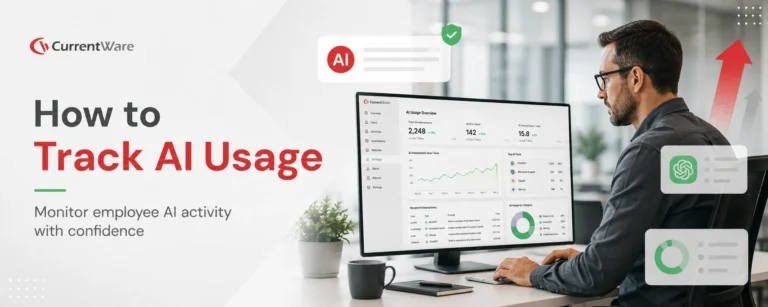
AI Employee Monitoring Software: How to Track AI Usage – A Complete Guide
Why AI Usage Monitoring Is Now Mission-Critical AI adoption is exploding but most businesses are flying blind. According to Deloitte’s…
Employee Monitoring
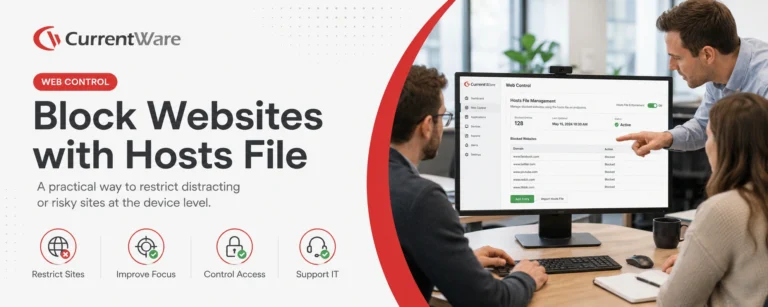
How to Block Websites Using the Hosts File on Windows 10/11
Editing the Hosts file to block a website on multiple devices is a time-consuming, inflexible, and labor-intensive process. For just…
Employee Monitoring
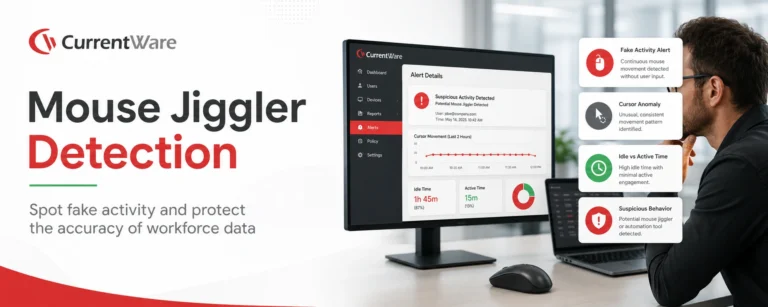
Mouse Jiggler Detection: How Businesses Can Identify Fake Activity and Protect Workforce Productivity
This article explains how mouse jigglers work and the dangers they can pose for businesses. According to Gallup, just 20…
Frequently asked
Frequently Asked Questions:
-
The free trial is fully functional. You can deploy it on up to 10 computers for 14 days.
If you need more time or more computers to properly evaluate CurrentWare’s solutions in your organization, reach out to our team. You can call us, email us, or use our live chat.
-
No, CurrentWare cannot access your employee’s computer activity or screen recording data. CurrentWare’s software does not send your user’s computer usage data to CurrentWare. They are installed and managed by your organization.
All of the data collected by CurrentWare’s software is stored on a database that is installed in your organization’s data center or cloud service provider.
With CurrentWare’s on-premises & self-managed cloud deployment options, you’re in complete control of your data.
- Sensitive employee data stays secured to your standards rather than being sent to a third party.
- Maintain data localization and residency compliance requirements by keeping employee data exactly where it needs to be.
- Retain auditable records of user activity for as long as you need
For more information please refer to our Terms of Service.
-
When purchased as a standalone solution, BrowseReporter employee monitoring software starts at $5 USD per license per month, paid annually.
The final costs depend on the number of licenses, how many years are purchased in advance, and other factors.
For the most accurate costs, reach out to our sales team for a quote.
-
Yes. BrowseReporter is a remote employee monitoring software that supports a variety of deployment options that allow companies to track remote teams.
Using BrowseReporter you can monitor employee computer activity no matter where each team member works.
To learn more about using BrowseReporter in a hybrid or remote work environment, visit this article: How to Set Up Remote Employee Monitoring Software
-
Yes, BrowseReporter’s client agent that is installed on the employee computers has the ability to monitor computer activity and track productivity even if it does not have a connection with the CurrentWare Server.
When your employees disconnect from your network the client agent will store their activity and productivity data locally on the device. Once they reconnect to the network their data will be synced to the CurrentWare server.
Note: If you wish to get data from computers outside of the network they will need to be able to communicate with the CurrentWare Server.
Once a connection is reestablished you will receive your employee computer activity data and any CurrentWare policy updates will take effect.
Learn More: How to Set Up CurrentWare’s Employee Monitoring Software for Off-Site Teams
-
Yes. The CurrentWare Suite is supported on desktop computers, virtual machines (VMs), and servers running modern versions of the Windows operating system.
The CurrentWare Suite (BrowseReporter, BrowseControl, AccessPatrol, and enPowerManager) is also Citrix Ready verified, allowing you to use CurrentWare Suite modules with Citrix Virtual Apps and Desktops service (XenApp & XenDesktop service). You can install the CurrentWare Clients on your Citrix Workspace running Windows.
In addition, all CurrentWare components are compatible with Remote Desktop Services (RDS) or Terminal Servers (TS).
When monitoring Citrix virtual desktops with CurrentWare’s employee monitoring solutions you can track computer activities with PC Mode to track the individual virtual machine or with User Mode to track the activities of specific employees across multiple devices and/or virtual machines.
Monitoring and managing your end-users with CurrentWare in a Terminal Services environment works similarly. The exception is that in a Terminal Server/Terminal Services environment the server will be registered as an individual endpoint; when you run a report from PC mode it will give you a report on all the users’ profiles in a single report.
Learn More:
CurrentWare for Remote Desktop & Terminal Server -
Depending on the needs of your environment and the laws of your jurisdiction you can use our employee monitoring software to monitor employee computers with or without its transparency-enhancing features enabled.
Stealth Employee Monitoring
BrowseReporter operates in stealth mode by default.In stealth mode, the CurrentWare Client is not visible in the system tray or control panel of the employee’s computer.
Transparent Employee Monitoring
BrowseReporter’s optional transparency-boosting features make it the best employee monitoring software for being transparent about tracking employee computer activity.These features help your teams remain aware that their computer activity is being monitored in the workplace.
- Monitoring Notifications: Display a custom message that periodically reminds your employees that their internet and application activity is being monitored by BrowseReporter
- Show In System Tray: Enable this feature to make the CurrentWare Client visible in the system tray of your employee’s computers.
- End-User Reports: Enable this feature to give your employees access to their own computer activity data. This lets them see exactly what internet and application usage data is being shared.
Learn More: Best Practices for Monitoring Employees
-
When determining how screen recording software will be used with the teams in your organization it is important to understand the potential privacy implications for your employees and what factors (such as state and federal laws) influence your right to monitor employee computers.
Depending on your jurisdiction and the jurisdiction of your employees you may have legal obligations to fulfill before using screen recording software.
The best practice is to consult with a legal professional first to understand how state and federal laws, collective bargaining agreements, and other factors influence what employee activity can be monitored.
Most workplace privacy laws require you to be transparent about data collection. This includes informing employees about what is being monitored, how their data will be protected, and how it will be used.
Typically this disclosure is provided in an employee manual, workplace monitoring policy, or acceptable use policy.
Get a FREE Template: Workplace Monitoring Policy (Employee Monitoring Policy)
The best screen monitoring software helps you meet your privacy requirements with privacy-enhancing features such as alerting your users that their computer activity is being monitored.
-
CurrentWare has a global client base with companies across a variety of industries including government, healthcare, finance, nonprofit, and manufacturing.
CurrentWare helps its customers protect their business against time theft, lost productivity, data leakage, and web-based threats by monitoring and controlling computer use.
Read our customer case studies to learn more.
-
Yes. BrowseReporter’s client collects user activity data independent of the web browser’s browsing history log.
Internet browsing data will remain intact for use in reports and dashboards even if the user deletes their web browsing history in their browser or uses a private browsing function such as Incognito Mode On Google Chrome, Private Browsing On Mozilla Firefox, and InPrivate Browsing Window On Microsoft Edge.
-
CurrentWare is committed to the security of its platform, its users and their data.
- All of the data collected by CurrentWare’s solutions is stored in your organization’s data center or cloud service provider; the data is not sent to CurrentWare.
- The web console cannot be accessed without a username and password. For an added layer of authentication security you can enable two-factor authentication.
- You can selectively enable/disable what data is tracked and delete old records automatically.
For a complete overview of the security measures that CurrentWare has in place, check out the CurrentWare platform security overview page.
-
CurrentWare’s screen recording software is capable of the following as of version 9.0.2. See our release notes for the most up-to-date information
- On-demand Screenshots
Taking screenshots on-demand from a live stream of an employee screen; the live view can also be used by IT staff to help remotely troubleshoot technical issues or by managers to keep an eye on new hires to ensure they are following procedures correctly - Trigger-based Screenshots
Capturing the computer screen X minutes after a given website or application is accessed, such as a social media site or an internal tool with access to sensitive data - Interval-based Screenshots
Take a screenshot every X minutes to have a continuous timeline of employee computer activity
- On-demand Screenshots
-
The screenshot monitoring feature captures compressed images that are stored directly on the storage drive of your choice, ensuring that your SQL database remains lean and performant.
In addition, screenshots and user activity data can be automatically deleted based on the data retention settings you configure for your deployment.
The storage space required for the solution and the captured screenshots depends on how many computers you are managing, what data you collect, how many screenshots you take, and how long you retain the collected data.
Check out these resources for full details and to learn more about the storage management options within the CurrentWare Suite.
-
Employee screen monitoring software is a tool that allows you to monitor the screen activity on employee desktops.
Employee monitoring systems such as CurrentWare’s BrowseReporter include a screen monitoring tool, which lets you take screenshots of employee computers to keep an eye on your teams from anywhere at any time.
Screen recordings can be taken in real-time or scheduled to be recorded at specific intervals.
Try BrowseReporter for Free
Fully functional. Easy to use. $12 USD user/month*. For on-prem pricing, contact Sales